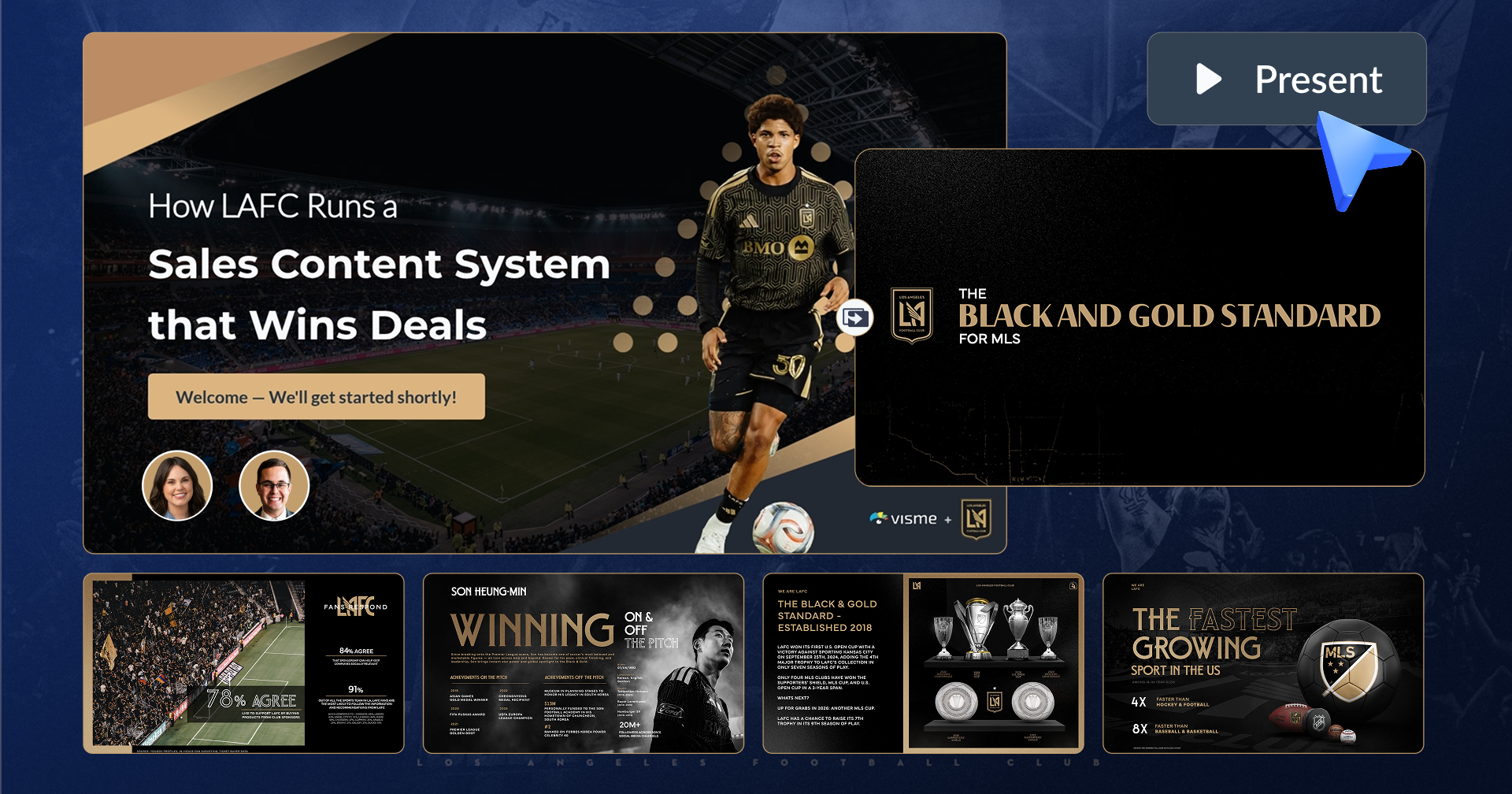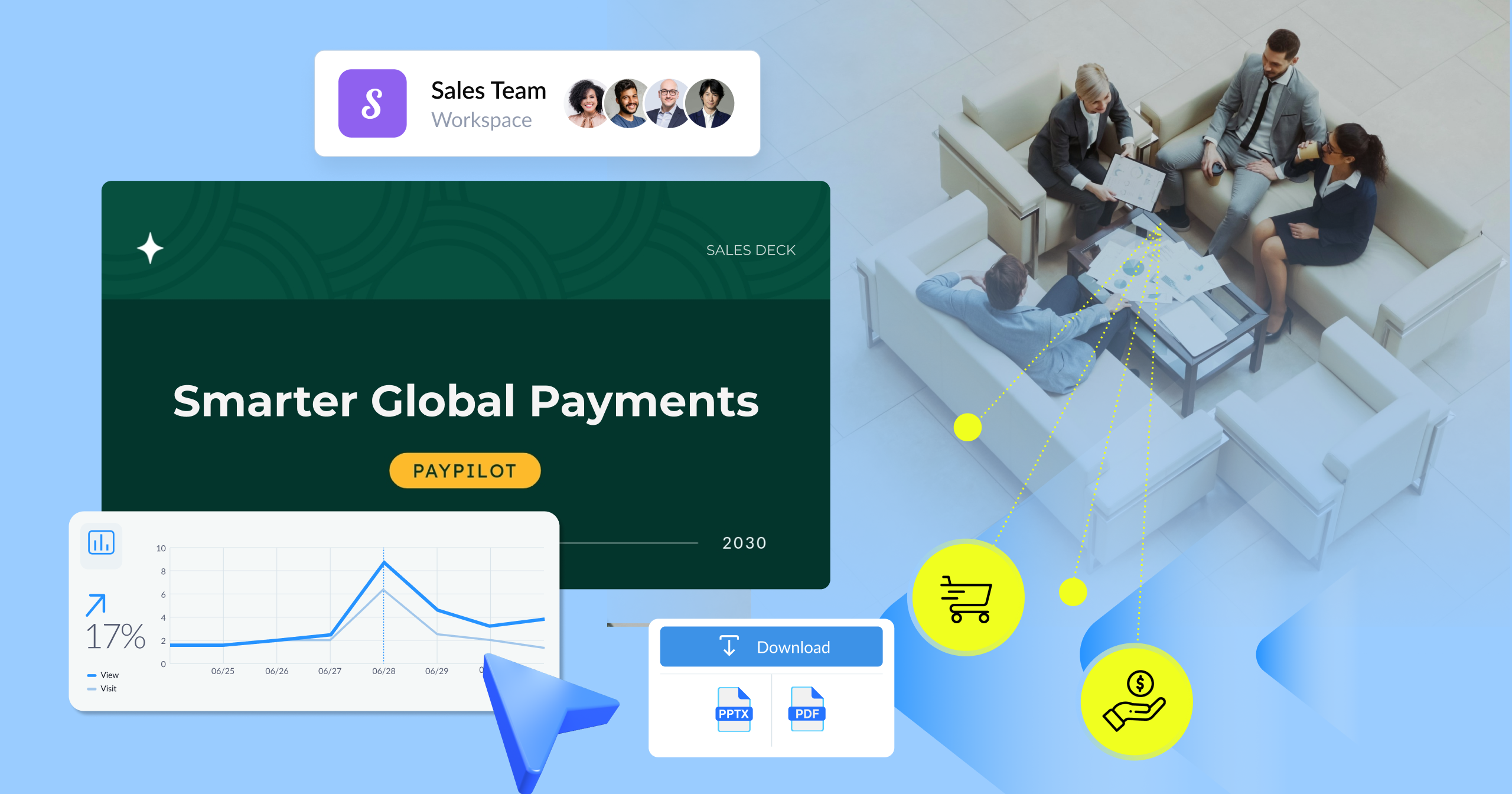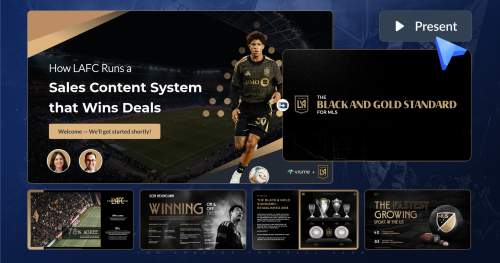
Why LAFC Builds a Personalized Sports Sponsorship Pitch Deck for Every Conversation

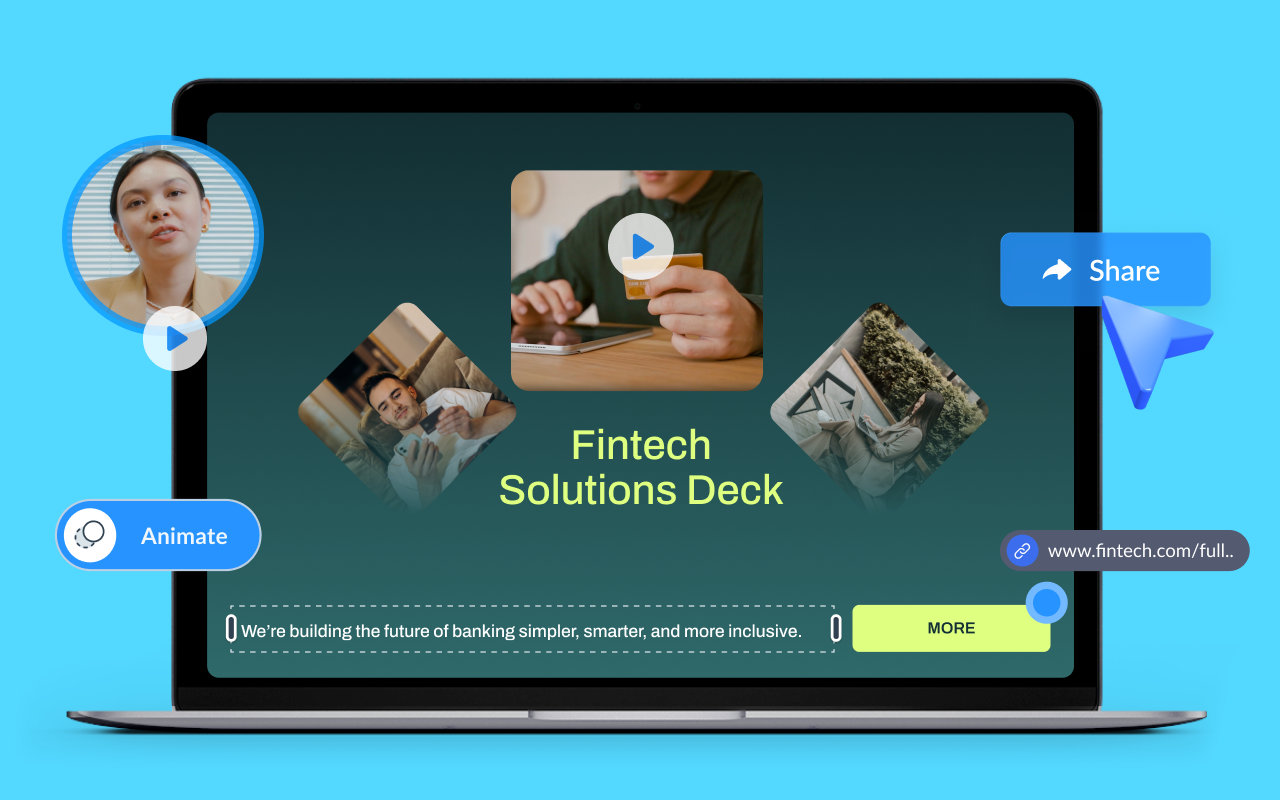
When putting together a presentation, whether live or embedded on your website, it needs to be engaging for your audience.
The best way to accomplish that is by creating an interactive presentation that holds the audience's attention and even allows them to take part.
The numbers prove it makes your presentation effective.
Outgrow reports that interactive content drives 52.6% more engagement than static content. And up to 70% of presenters say it’s the most powerful way to keep audiences tuned in.
But be careful: if you go overboard with interactivity, it can backfire. Random GIFs, cheesy animations, and crazy transitions can easily turn into distractions. The goal is to create a fun, immersive experience without overwhelming anyone.
In this guide, I'll walk you through practical ways to create an interactive presentation that grabs your audience’s attention and keeps them engaged from start to finish.
You'll also get insider tips, tools, professionally designed presentation templates, animations, and interactive elements that you can customize with our presentation software.
Before you get started, take a look at this video to see how Visme can amp up your interactive marketing efforts.
An interactive presentation invites the audience to participate. Viewers can click, answer, explore or choose what they see next.
Unlike a traditional presentation that moves one way, an interactive one responds to the audience. They click a poll, jump to the section that matters to them or watch an embedded video without leaving the slide. It's one part of the broader shift toward interactive content across marketing and communication.
Whether shared as a live link, embedded on interactive presentation websites or presented in person, the format stays flexible.
For example, the interactivity can be simple, such as an embedded video or audio clip in a multimedia presentation.
Or it can be more involved, like an immersive, branching experience with live charts, quizzes, hotspots and non-linear navigation, using interactive tools built for presentations.
See real examples of interactive content for inspiration.
Here's a quick walkthrough of building a multimedia presentation:
Now, the question is, are interactive presentations worth it? Here's what you gain from using them.
Each idea on this list is a way to engage your audience. The tools and features you'd use to pull them off are covered in the next section.
For a quick overview of these ideas in action, watch the video below.
| Category | Best For | Ideas |
|---|---|---|
| Technology-Based | Live audiences, remote meetings and hybrid presentations |
|
| Design and Visual Storytelling | Pitches, executive updates and sales presentations |
|
| Analog and Structural / Story-Based | In-person talks, workshops and keynotes |
|
| Training-Specific | Teachers, students, corporate training and employee onboarding |
|
For more detailed examples, see our full guide on interactive presentation ideas.
Ideas tell you what to try. Elements are the actual features you build with. Here are the ones that matter most, plus a few more worth knowing about.
Instead of moving through slides in a fixed order, viewers click to jump between sections. A product overview deck can open with a menu slide linking to a separate section for each feature, so a prospect only clicks into what they’re interested in.
Check out this video to learn how to build clickable, animated slides like this:
Add video directly into a slide instead of linking out to it. A training module can embed a two-minute demo video inside the slide covering that feature, so learners watch it in context without leaving the presentation.

Build polls and quizzes directly into your presentation using embedded forms. A sales training deck can quiz reps on objection handling right after covering it, with responses coming back in real time, whether the room is in person or remote.
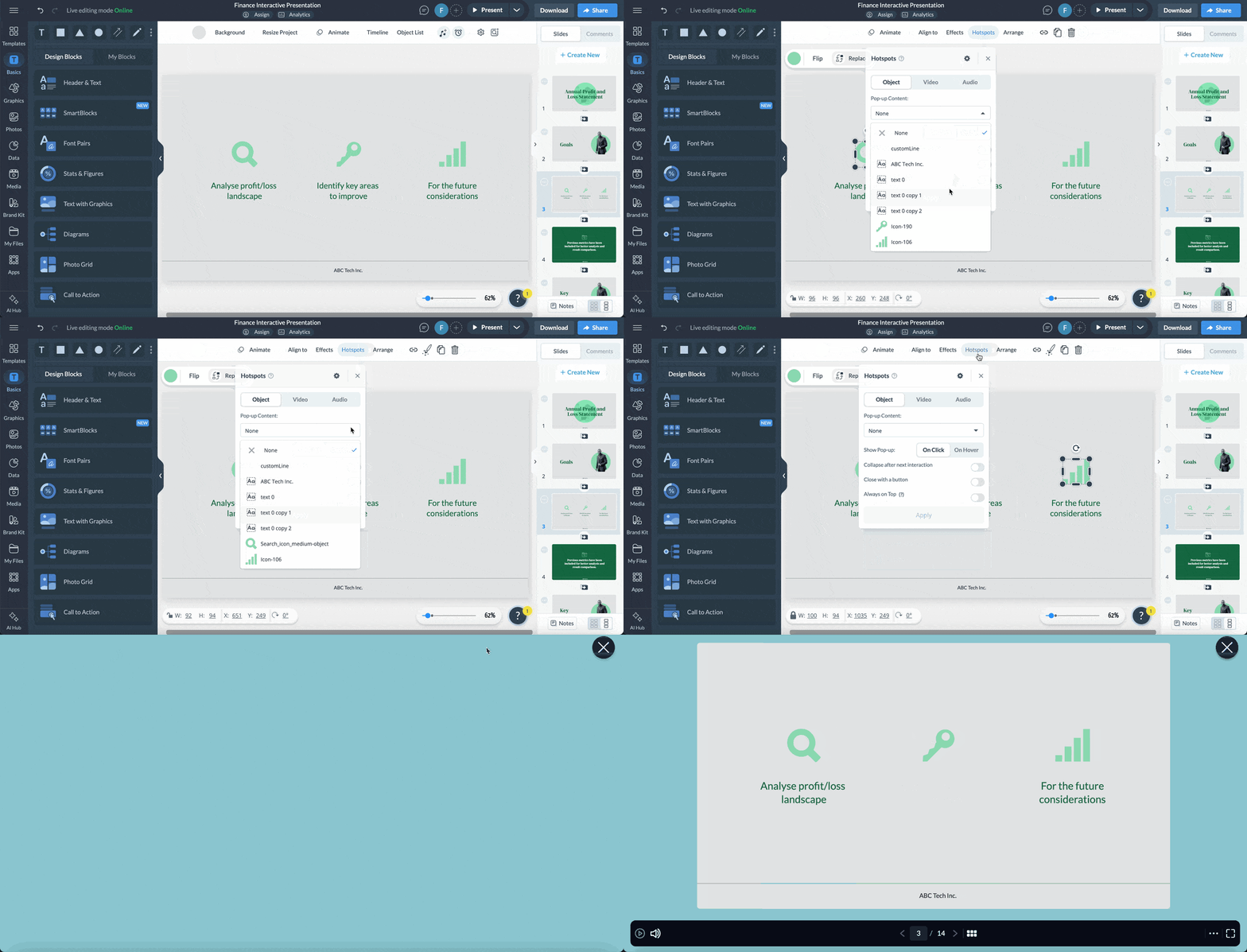
Hotspots turn part of a slide into a clickable area that reveals more detail on click. A world map slide can put a hotspot on each region, so clicking a country reveals that market's numbers instead of listing every country on one crowded slide.
Branching lets different viewers take different routes through the same presentation based on their choices. It's also the mechanism for structuring a presentation so that an audience can choose its own direction, as discussed above. Iriss, a Visme user, built branching paths so different audience segments can see the content relevant to them from the same presentation link.
Once a presentation is shared via a link, Visme's analytics tool shows which slides receive the most attention and which are skipped. A sales team can send a proposal as a link, see a prospect re-open the pricing slide three times, and follow up before the prospect even reaches out.
This matters more than most teams realize. In Visme's 2026 survey of B2B sales teams, 49.3% said they track detailed engagement on their decks, down to which sections hold attention and when to follow up while a prospect is still viewing it.
The other half gets little to no visibility at all. The same logic applies to any data you present, whether it's a marketing report or an Excel dashboard turned interactive.
Below are other interactive elements that can elevate the quality of your slide deck.


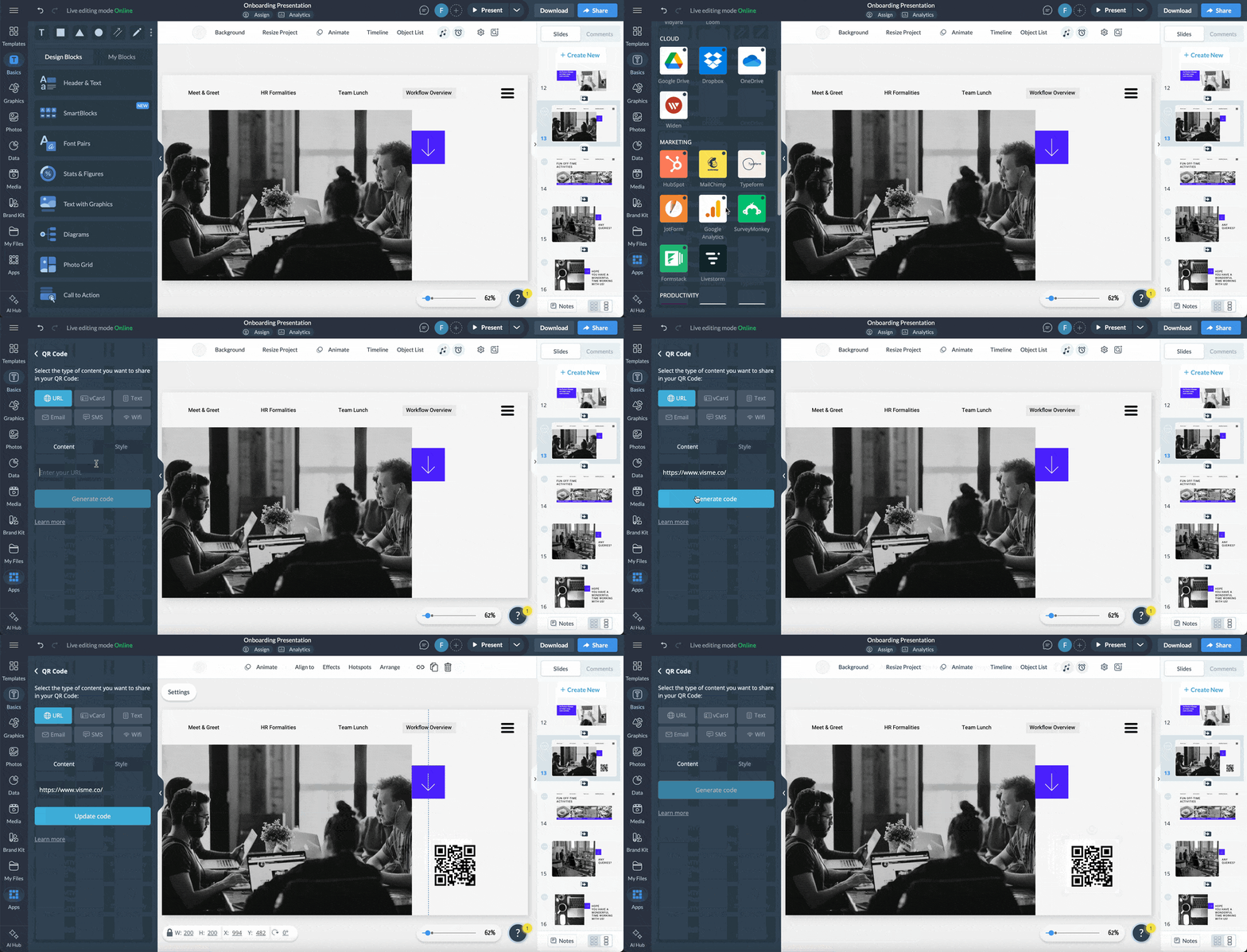

There are plenty of interactive presentation tools available online to help you create engaging product presentations for various purposes.
We compared seven of them to see how they perform and what they bring to the table.
For each tool, we either signed up for a free trial or created a free account. Then, built an interactive product presentation to explore the editor and evaluate the features.
The tools in the table below range from full interactive presentation software to more focused polling platforms.
Most offer a free plan, so you can test hotspots, quizzes or branching paths before committing to a paid interactive presentation maker. You'll also find built-in interactive presentation templates, so you're not starting from a blank canvas.
| Tool | Key Interactive Features | Other Features | Pricing | Best For | G2 Rating |
|---|---|---|---|---|---|
| Visme | AI presentation maker, hotspots, clickable menus, animated transitions, quizzes, forms and analytics. | 3D characters and illustrations, animated data visualization, Brand Kit, collaboration and workflow tools. | Free; paid from $12.25/month | Teams that want interactivity, branding and analytics in one platform. | 4.6/5 (470+ reviews) |
| Canva | Clickable links, animations, transitions and embedded video and audio. | AI design tools, large template library and Brand Kits. | Free; paid from $18/month | Fast, polished visual design across many content types. | 4.7/5 (7,550+ reviews) |
| Prezi | Zooming, non-linear canvas, real-time collaboration and viewer analytics. | AI presentation maker and Prezi Video for virtual meetings. | Paid from $7/month | Presentations built around a spatial, non-linear story. | 4.2/5 (5,700+ reviews) |
| Mentimeter | Live polls and quizzes, word clouds and open-ended questions. | Templates plus exportable analytics and reports. | Free; paid plans start at €14/user/month | Live audience engagement in meetings and classrooms. | 4.7/5 (785+ reviews) |
| Genially | Gamified quizzes, clickable hotspots and menus, interactive infographics. | Templates, media library, Brand Kits and real-time collaboration. | Free; Pro $15/month | Gamified, template-driven content for education and training. | 4.6/5 (60+ reviews) |
| Tiled | No-code interactive microapps, page-by-page analytics and personalization. | Integrations with Adobe Creative Cloud and Sketch, plus API access. | Custom pricing; contact sales | Enterprise sales teams turning proposals and decks into trackable content. | 4.3/5 (220+ reviews) |
| AhaSlides | Live polls, gamified quizzes with leaderboards, word clouds and spinner wheels. | AI slide and quiz generator with integrations for PowerPoint, Google Slides, Microsoft Teams and Zoom. | Free; paid from $5.95/month | Budget-friendly live engagement for classrooms, meetings and events. | 4.7/5 (320+ reviews) |
Here’s why these tools make the list:
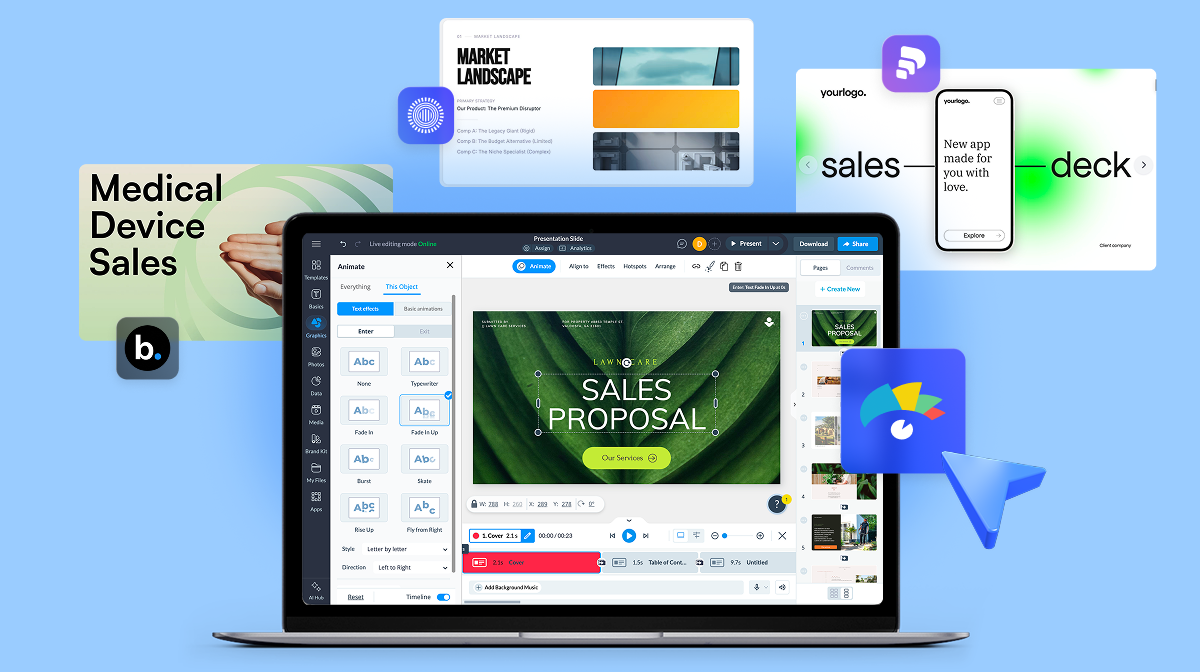
Inside the Visme editor, you’ll discover a vast library of professionally designed presentation templates tailored to a variety of business needs, from marketing, sales, consulting and beyond.
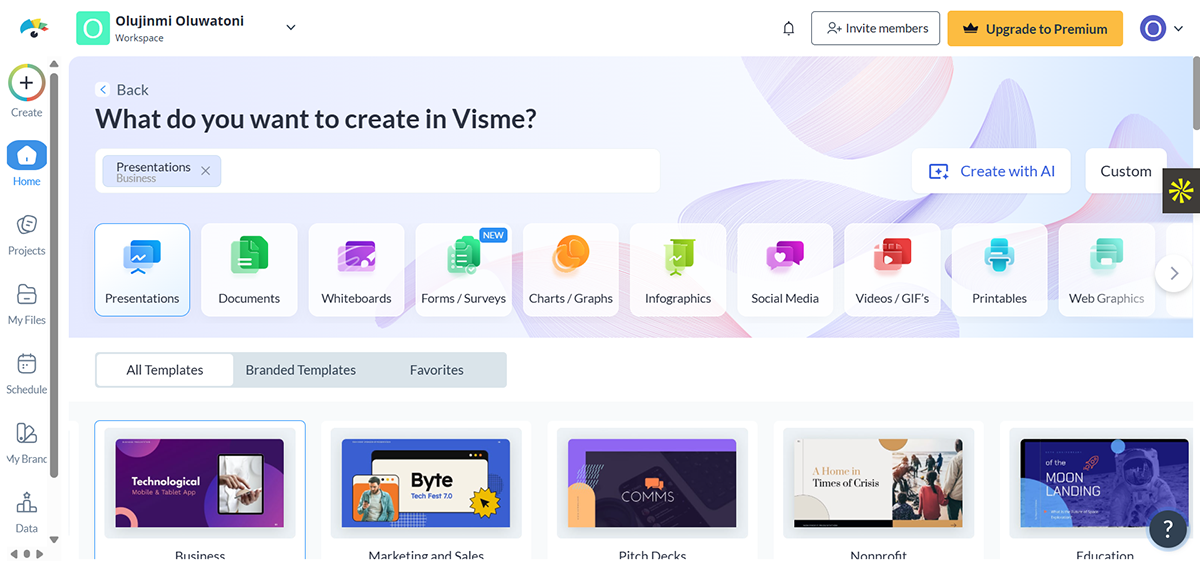
There’s no shortage of ways to make your presentation interactive. You can animate text and illustrations, add hover effects, transitions, clickable buttons, links, hotspots, pop-ups, and even animated characters. Adding interactive content such as polls, quizzes, and forms is just as easy.
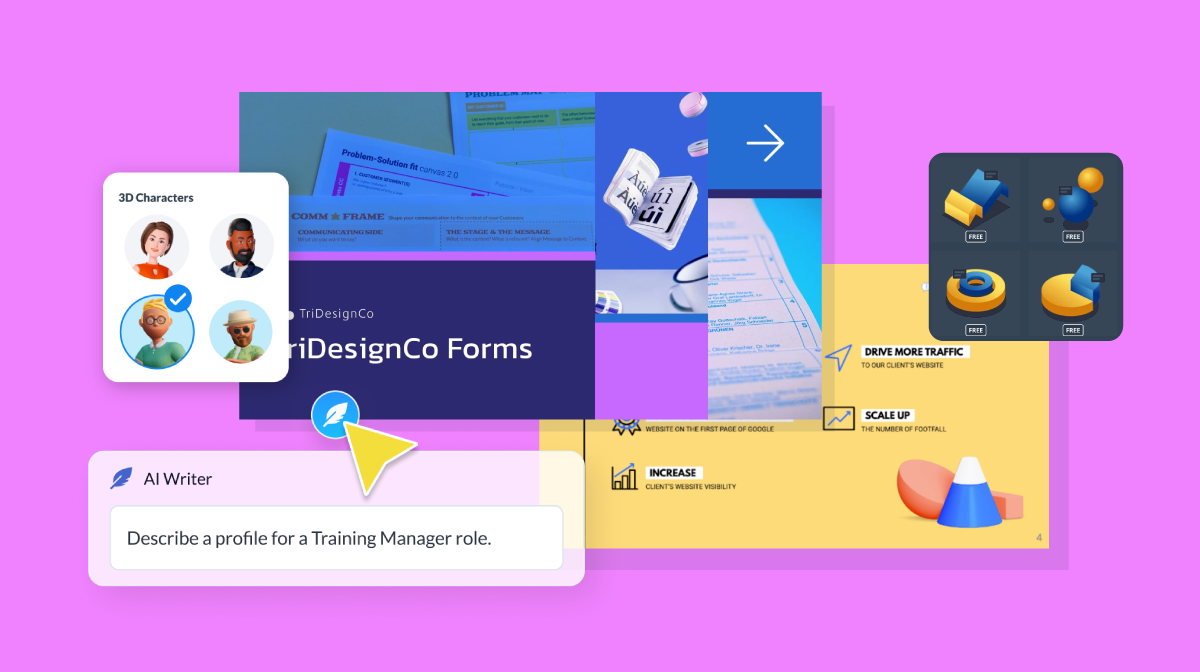
The 3D Character Creator is one of Visme's most distinctive features. It’s beginner-friendly yet offers lots of customization options, such as hair, face, apparel, gender and ethnicity. You also have the option of choosing their entry, waiting and exit poses. Being able to create unique characters that match your audience or scenario adds a human touch and makes your decks relatable.
To control, edit and adjust the animated elements in your presentation, use the timeline feature at the bottom of the screen.
If you’re short on time, Visme’s AI presentation maker can generate a complete draft for you.
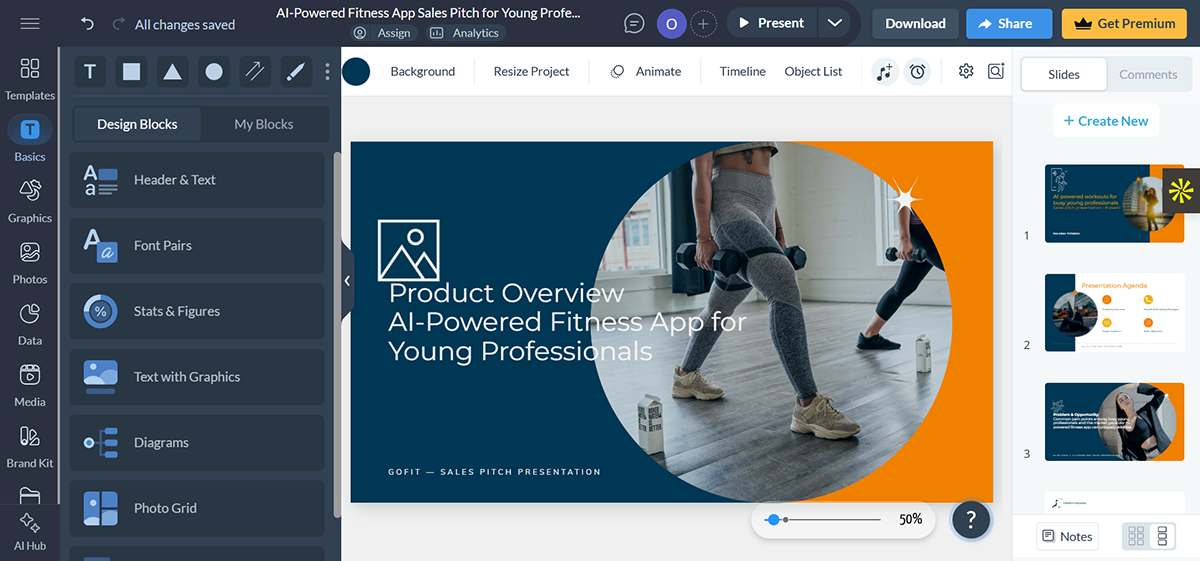
Just click “Create with AI” inside your Visme dashboard, enter a short prompt and upload your content. The AI will generate a full design draft for you, complete with layout, stock images, icons, animations, data widgets and more.
For example, here’s what Visme came up with when I typed in “Create a sales pitch presentation for an AI-powered fitness app targeting young professionals.”
Let's take a look at some more features in Visme:
AI won't build the interactivity for you. Hotspots, branching paths and embedded quizzes still need manual setup. What it does is remove the blank-page problem and get you a full first draft in minutes.
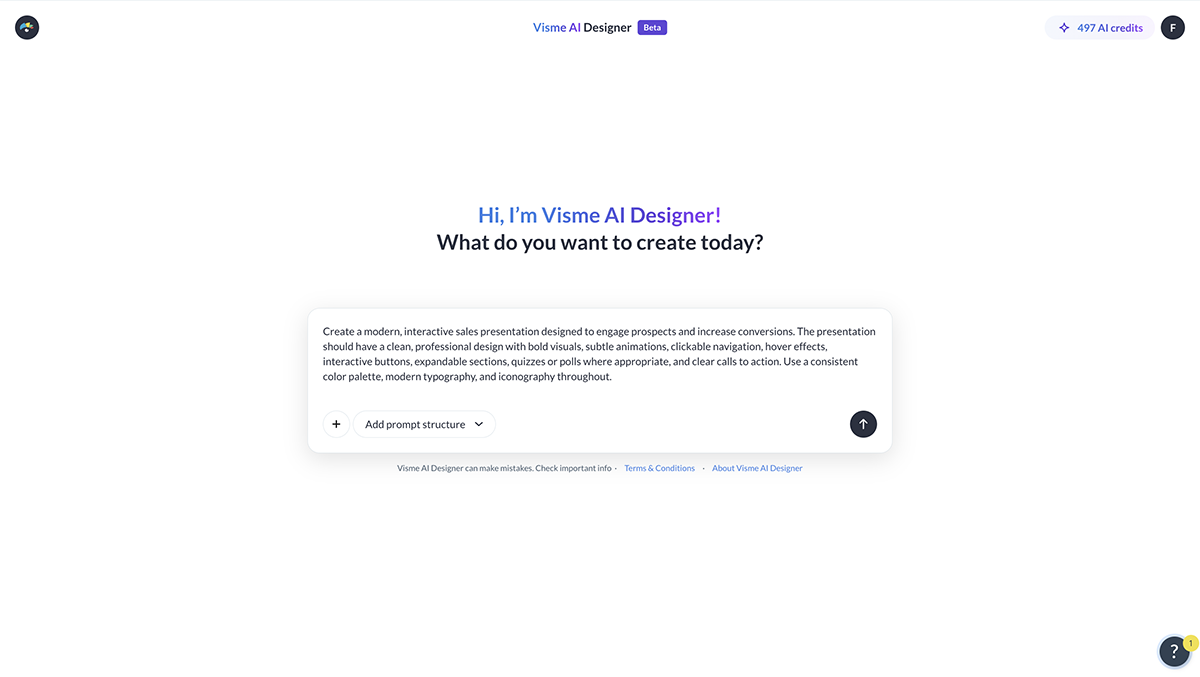
Most AI presentation tools let you start from a prompt instead of a blank canvas. Describe the topic, audience and tone. Many tools also let you upload a document or paste a URL for AI to pull content directly, which is useful if you already have a report or webpage you want turned into slides. If your prompt is incomplete, some tools will ask follow-up questions to fill in the gaps.
Based on your prompt, most tools suggest a handful of styles or templates that match your topic. Pick the one closest to the look you want, since it's easier to adjust colors and fonts later than to change the whole style. If your tool has a brand kit, apply it now so the generated deck already uses your colors, fonts and logo instead of a generic template look.
The tool builds out slides using your chosen style, pulling in relevant text, images and icons. This usually takes a minute or two, depending on how many slides you asked for.
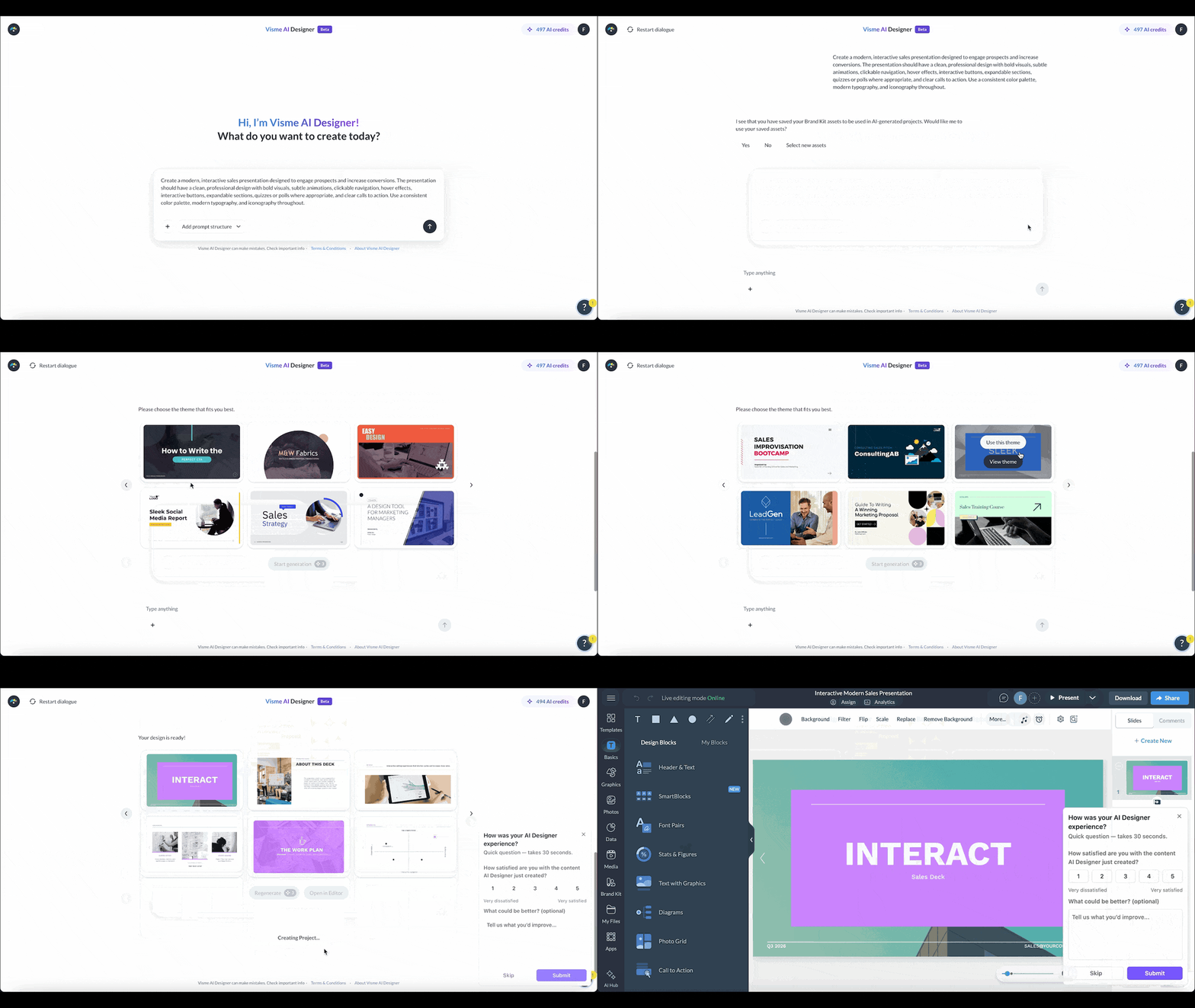
Open the generated deck in the editor to fine-tune text, swap images and add interactive elements like hotspots, clickable menus, embedded video or polls, since most AI tools won't include these on their own. When it's ready, share it as a live link, embed it, or download it.
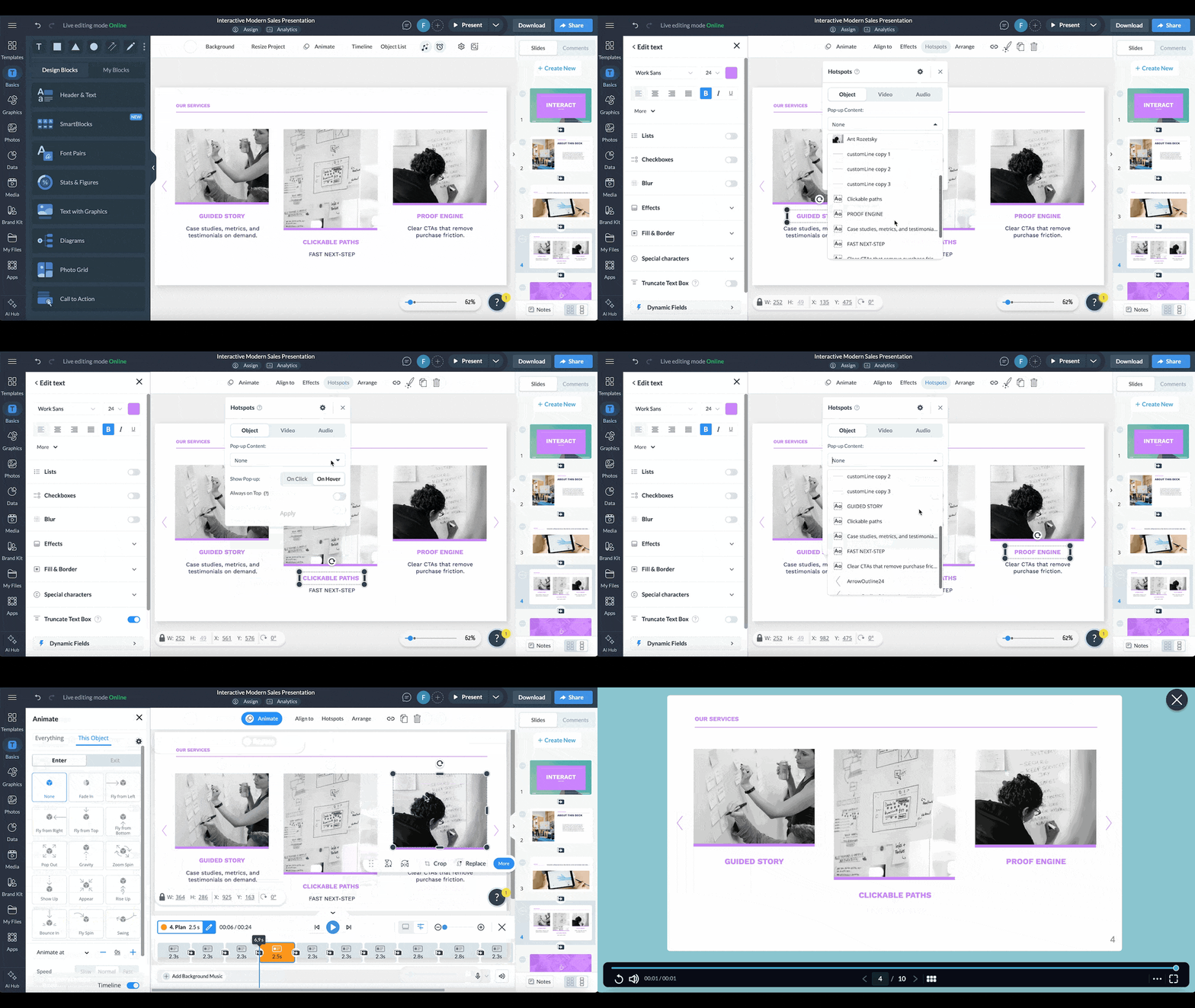
Want the full build process? See our step-by-step guide to creating an interactive presentation from scratch.
Interactive content is more effective because it grabs attention and provides an engaging and immersive experience that keeps users hooked on your content. This attribute makes it a brilliant strategy for educating your audience, increasing audience participation, boosting engagement, and improving their overall learning experience.
According to a DemandGen report, up to 90% of marketers admit interactive is effective in educating buyers but other marketers use it for lead generation (58%), brand awareness (57%) and conversion (49%).
There are many interactive presentation tools out there. Visme is the best, primarily because it offers a user-friendly interface, a full suite of animation and interactive tools, multiple customization options, an extensive library of templates and much more.
You can access animated 2D and 3D graphics, icons, illustrations and special effects that level up your visual content, as well as, animated enter and exit effects for your text and other design elements.
In addition, you can create a clickable menu or interactive table of contents, ink slides, pages or content blocks to objects on your canvas, and create hover effects or clickable pop-ups that reveal information when users take action.
The best part? Visme offers a variety of interactive templates and ready-to-use graphics that help users save time and create high-quality presentations quickly.
When it comes to interactive presentations, there are several types that can be quite effective.
However, one of the most interactive types of presentations is one that involves the audience directly in the discussion and allows for active participation.
This can be achieved by using interactive presentation examples and tools such as videos, live polls, quizzes, Q&A sessions, interactive games, and hands-on activities. By engaging with the audience in this way, presenters can create a memorable experience that not only educates but also entertains.
There are a few things you can do to make your presentation more memorable.
First, make sure you have a clear and concise message you want to convey to your audience. This will help you stay focused and avoid getting sidetracked during your presentation.
Next, use visuals like images, graphs, and charts to help illustrate your points and break up the text on your slides. Don’t be afraid to use humor or storytelling as well, as these can help engage your audience and make your presentation more entertaining.
You can also consider adding animations and interactive elements to your presentation to make it more engaging. Interactive elements, such as quizzes, polls, or games, can also help to engage your audience and keep them interested in what you’re saying.
Animations can be used to bring your content to life and keep your audience’s attention focused on the screen. For example, you can use animations to highlight key points or to add a bit of visual interest to your slides.
Finally, practice your delivery and try to be confident and enthusiastic when you present. This will help you connect with your audience and leave a lasting impression.
Interactive presentations can be more effective than traditional, static presentations because they engage the audience and keep them interested throughout the presentation.
When the audience is hooked, they become active learners and are more likely to retain the information.
Interactive presentations can also be customized to meet the specific needs and interests of the audience, making them more relevant and impactful.
Overall, incorporating interactive elements into a presentation can help to create a more dynamic and memorable experience for the audience.
Yes, an interactive presentation and interactive content are two different things.
An interactive presentation is a type of content that conveys engaging information using multimedia elements such as videos, animations, and interactive graphics.
Interactive content, on the other hand, refers to any type of content—such as quizzes, polls, and games— that requires your audience to participate actively rather than consume the information passively.
An example of an interactive presentation is a sales deck with a clickable menu, embedded demo video and a pricing slide that reveals details on click. The buyer picks the section they care about instead of clicking through every slide in order. Training modules work the same way, using quizzes and polls to check understanding as the learner moves through the material.
The best free interactive presentation tool depends on what you need, but Visme’s free plan is a strong option, including hotspots, clickable menus and embedded video with no credit card required. AhaSlides and Genially also offer usable free tiers, both focused more narrowly on live polls and quizzes rather than full presentation design.
Good interactive activities for a presentation include live polls, quizzes, word clouds, Q&A and branching paths that let the audience choose what they see next. Polls work best early, to steer the content or gauge the room. Quizzes fit mid-presentation, to check what’s landing before moving on. Branching paths suit longer sessions where different people in the audience need different information.
The 5-5-5 rule for presentations is a guideline of no more than 5 words per line, 5 lines per slide and 5 text-heavy slides in a row. It keeps slides simple so the audience listens instead of reads. The rule isn’t a strict formula. It’s a check to catch slides that have turned into a script instead of a visual aid.
Yes, there is an interactive PowerPoint, though only in a limited form. PowerPoint supports basic interactivity like hyperlinks and action buttons, but it lacks built-in polls, quizzes or analytics. You can simulate a clickable menu using hyperlinked slides, but you won’t get real-time audience input or engagement data without a plugin or a dedicated tool like Visme.
You make a presentation interactive without coding by using a no-code tool like Visme to add hotspots, polls, quizzes and clickable navigation through a drag-and-drop editor. You drag an element onto the slide, set what it links to or reveals, and the interactivity works without touching a line of code.
Your next presentation doesn't have to be something people sit through with their phones out. It works because it gives your audience something to do, not just something to watch.
Start with one or two ideas from this guide, add the elements that support them, and build from there.
Every idea and element covered here — hotspots, clickable menus, embedded video, quizzes, branching paths, and analytics — is built directly into Visme's presentation maker.
Sign up for a free account and start building presentations that hold attention and drive action
Design visual brand experiences for your business whether you are a seasoned designer or a total novice.
Try Visme for free