23 Trusted Tips for Delivering a Conference Presentation


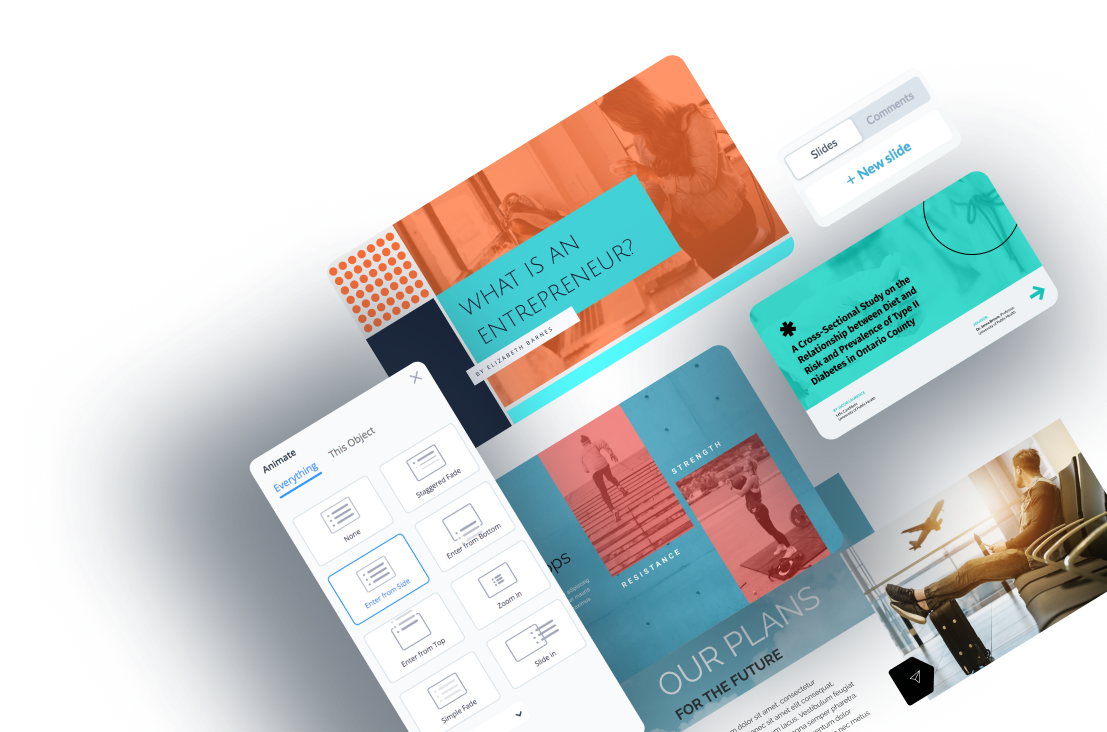
Static presentations have long been the norm, but why settle? Instead, consider creating animated presentations that have vibrant and eye-catching designs.
Using animated presentation software will help make your presentations shine and stand out from the crowd. The "Animations" menu or "Animation" tab in most software (such as Visme, Microsoft PowerPoint, Adobe After Effects, or Google Slides) provides options related to animation, such as adding motion effects to text, objects or scenes.
What is an animated presentation? It’s a presentation that has moving parts inside the slides and creative slide transitions. In some cases, you can even have your animations trigger as you click on the slide.
These effects can make your presentation much more engaging for your audience. Not only that, it gives you, as the presenter, cues to move forward with the information on the slides.
Sure, PowerPoint can be animated too, but there are many other, better options for animated presentation software that you should know about.
Ready to create a presentation that impresses your audience? Use our presentation software to create beautiful slide decks with customizable templates, smooth transitions, advanced animation, pre-animated assets and more.
| Software | Key Features | Pricing | Best For | Core Uses | G2 Rating |
|---|---|---|---|---|---|
| Visme | Advanced animations, 3D characters, interactivity, templates, data visualization, AI tools, collaboration, Presenter Studio | Free; Paid from $12.25/month | Businesses, educators, teams | Animated presentations, infographics, social media graphics | 4.5/5 (455+ reviews) |
| Prezi | Non-linear zooming, animated transitions, story blocks, AI features | Free; Paid from $15/month | Students, educators, companies | Storytelling presentations, explainer content | 4.2/5 (5,180+ reviews) |
| Vyond | Character animation, lip-syncing, templates, voiceover tools, AI video creation | Paid from $58/month | Marketers, educators, businesses | Animated video presentations, explainers | 4.8/5 (445+ reviews) |
| Genially | Interactive elements, gamification, animations, templates, multimedia support | Free; Paid from $10/month | Educators, marketers, teams | Interactive presentations, quizzes, animated infographics | 4.6/5 (60 reviews) |
| Canva | Magic Animate, page animations, timeline, templates, AI features | Free; Paid plans available | Beginners, freelancers, teams | Quick animated presentations, social-first slides | 4.7/5 (6,210+ reviews) |
| Powtoon | Characters, scenes, whiteboard animations, AI tools, screen recording | Paid from $15/month | Marketers, trainers, educators | Explainer videos, animated presentations | 4.4/5 (230+ reviews) |
| PowerPoint | Deep animation control, Morph transitions, timeline pane, drawing tools | Included in Microsoft 365; Standalone $179.99 | Students, educators, businesses | Traditional presentations, animated slides, offline use | 4.6/5 (4,265+ reviews) |
| Beautiful.ai | AI slide formatting, smart templates, auto-animation, analytics | Paid from $12/month | Professionals, teams | Fast, clean presentations with subtle motion | 4.7/5 (180+ reviews) |
| Mango Presentation Maker | Desktop app, animations, character assets, interaction mode | Free; Paid version $49 | Offline users, beginners | Simple animated presentations, local editing | 4.3/5 (15+ reviews) |
| Linearity Move | Advanced motion design, timeline editing, Auto Animate, vector workflow | Free tier; Paid from $14.99/month | Designers, creatives | Motion graphics, animated scenes, dynamic storytelling | 4.6/5 (4 reviews) |
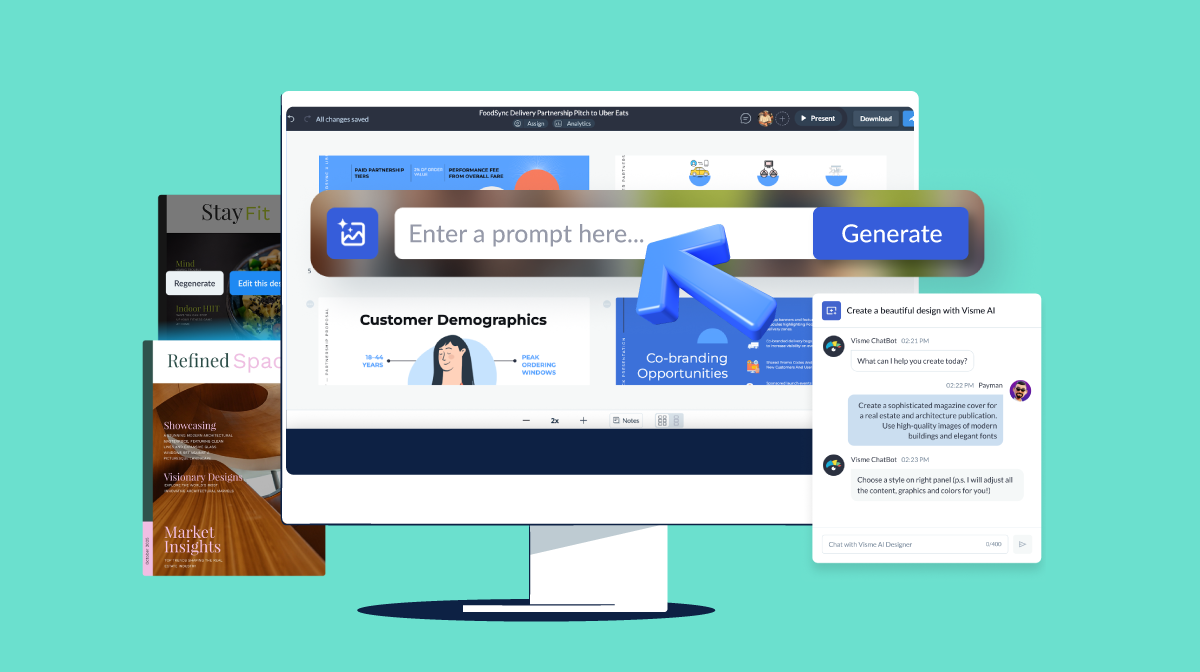
Is Visme good for presentations? I'll let the features talk for themselves. This animated presentation software lets users apply special effects to slide transitions. Using a tool like Visme will turn your presentations into works of digital art.
The animation options are classy, easy to use and never over the top.
Visme's animated presentation templates include a staggered animation of elements right out of the box. So, even if you don’t add anything else to your slides, a finished Visme presentation will already be animated and ready to go!
If you don’t like the way this default transition works, you can change it inside the slide controls.
Below are the different animation controls available inside Visme.
Sure, Visme presentations come animated right out of the box, but if you want to change that, there are plenty of other options too.
Click on the gear icon in any one of the slides and you’ll see the option for “Change Transition.”
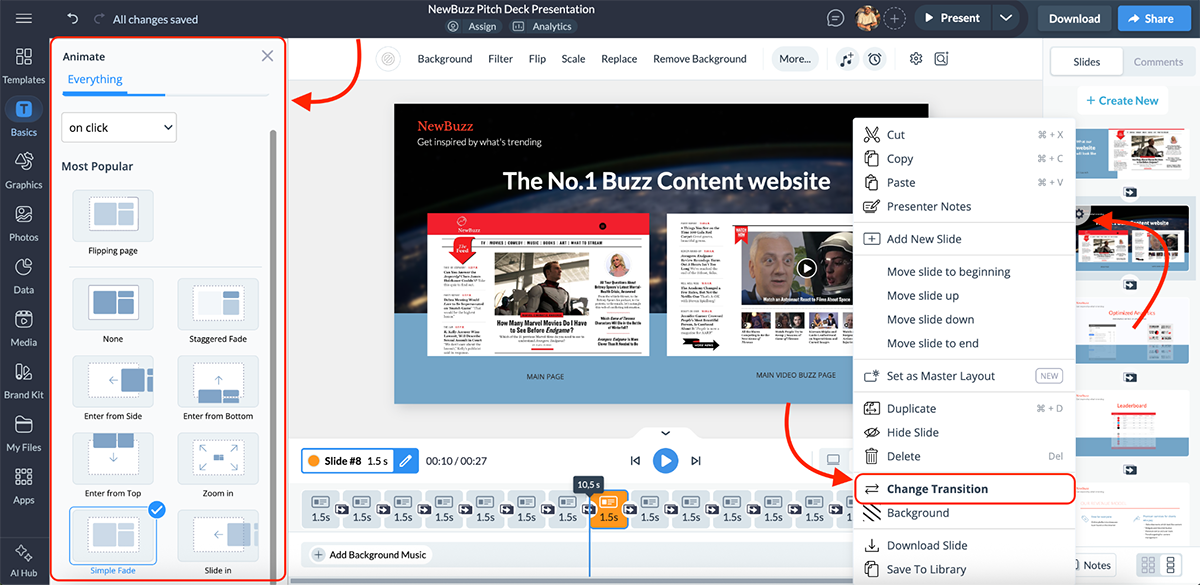
You can choose between the following:
And these transition styles are available:
All choices can be selected for one slide at a time, or for all slides. This is practical when some slides have media, like video or audio narration.
Pro-tip: Stick to one style or at most two. If you mix and match too many styles, your presentation will look confusing, and the magic of animated transitions will be lost. Also, if you add animation to your elements, these have to work together with your slide transitions!
The animation controls in Visme are available for every single element on a slide.
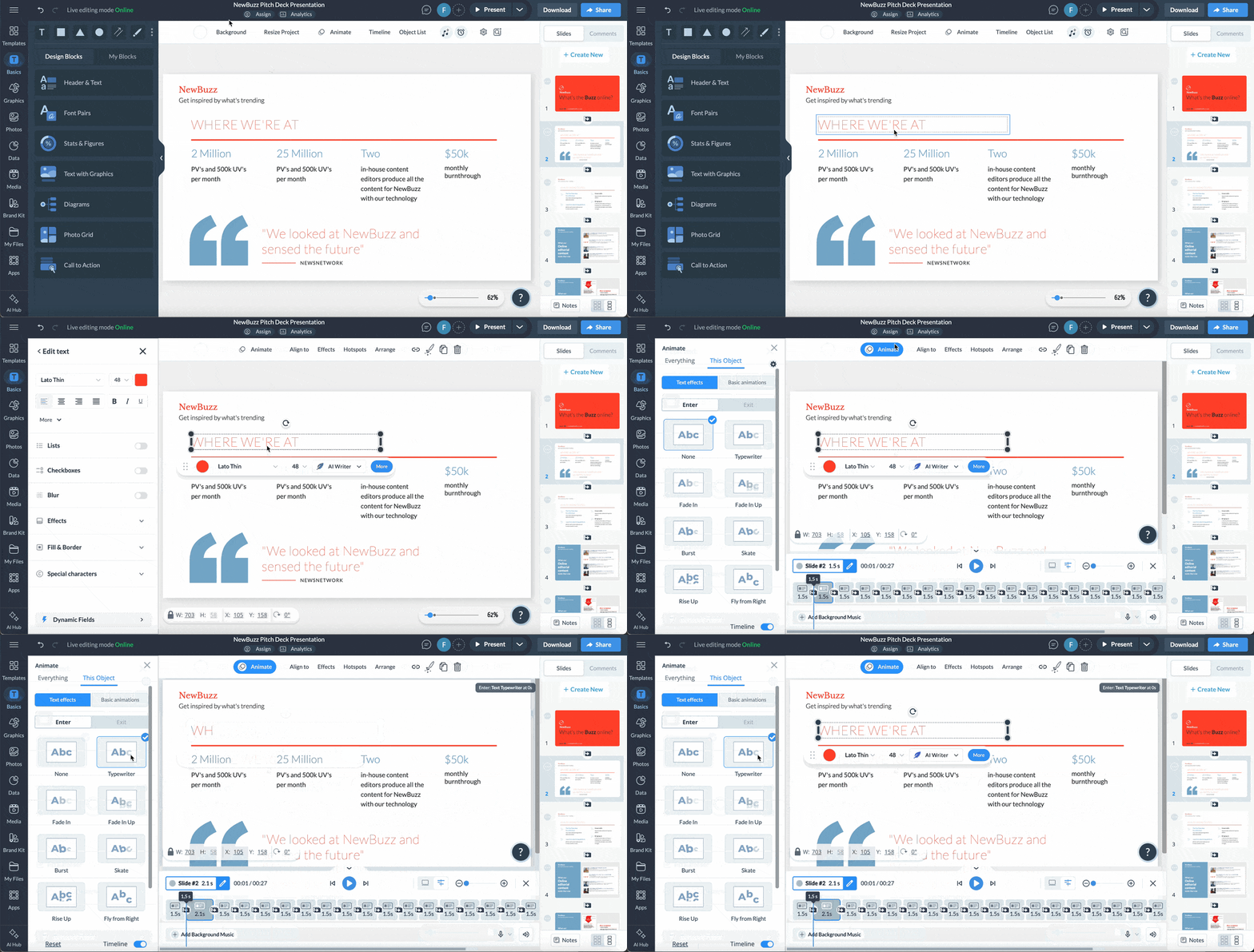
To access them, simply click on the element you want to animate, and then click “Animate” to open the menu.
You can select whether you want your animations to be applied to everything on the slide, or just the chosen element. Toggle between entry and exit of the animation, and even choose the style, direction and speed/timing of your animations.
There are two types of animations available here:
Text effects available are as follows:
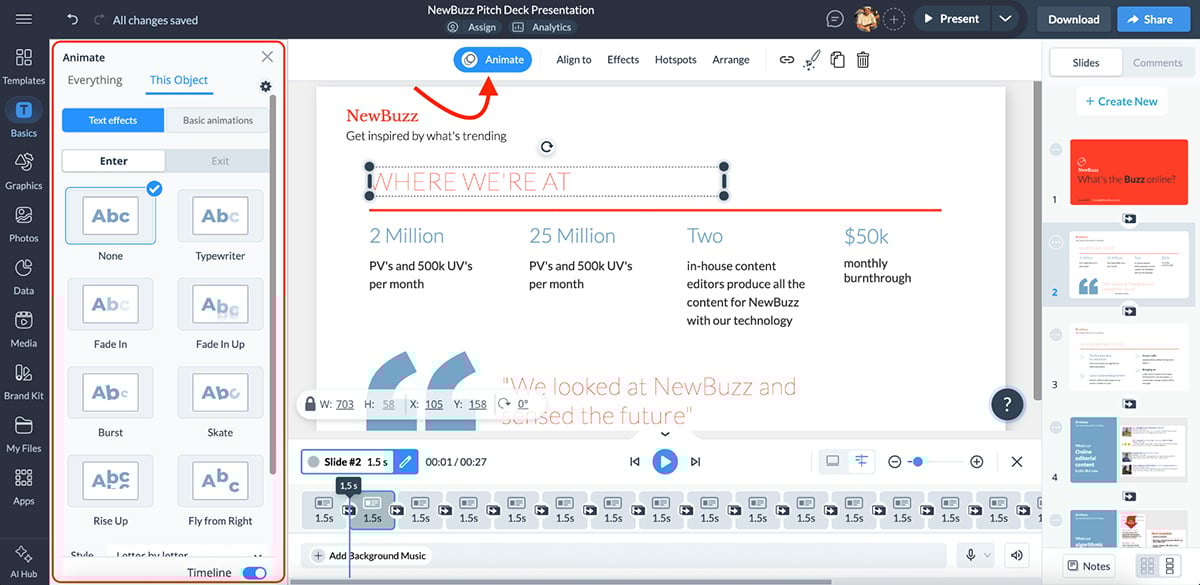
The animation styles available are as follows:
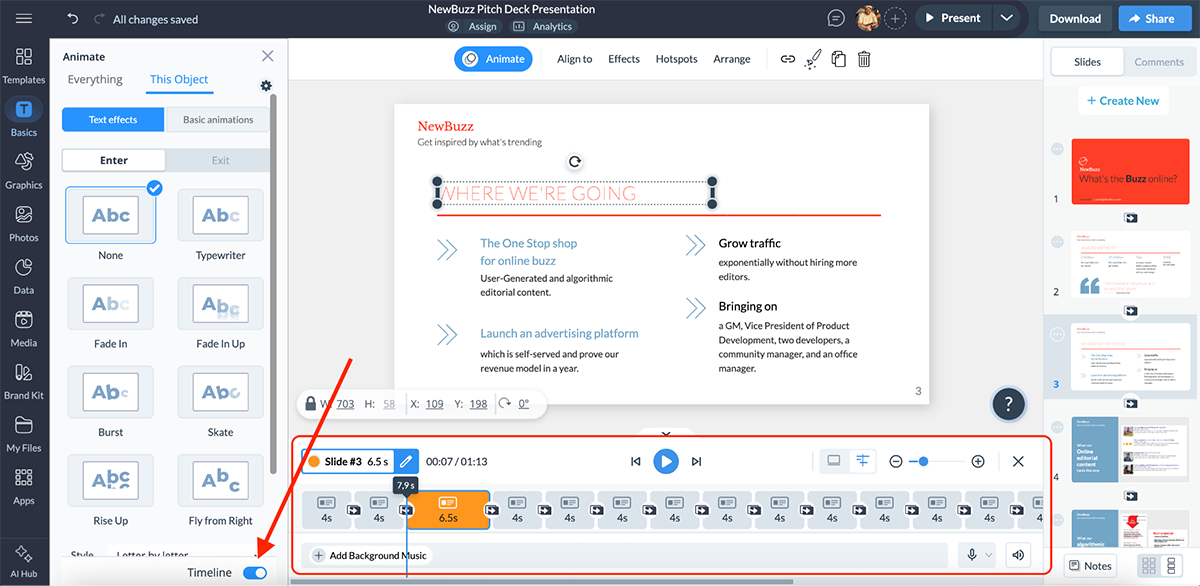
After you have added at least one animation to a project, you’ll be able to see the animation timeline on the bottom of your screen. You can toggle it on or off by simply clicking the button.
Personally, I prefer the timeline view, as it doubles down as an editor. I can edit my transitions, add music/voiceovers, drag the duration of each slide and more.
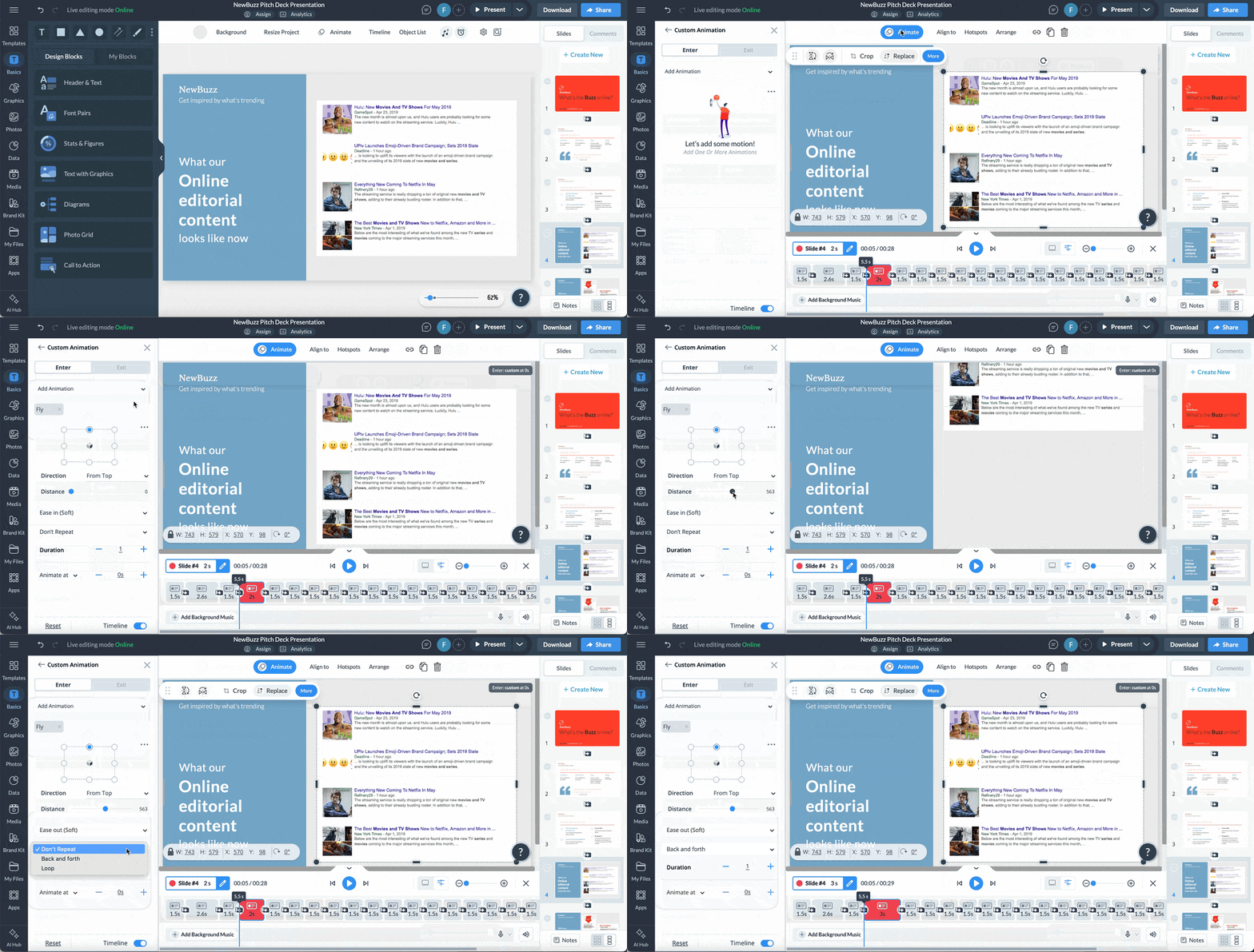
You can also create your custom animations here if you want. Just click on Advanced Settings, pick your animation type (fly, fade, rotate, grow) and customize however you want.
Check out this video to learn how you can quickly create an animated presentation using Visme:
To level up your professional presentations even more, add interactive elements to your slides. Some of the interactive features that Visme boasts include:
To add interactivity to your presentation, click on the element that you want to make interactive, and click on “Hotspots”.
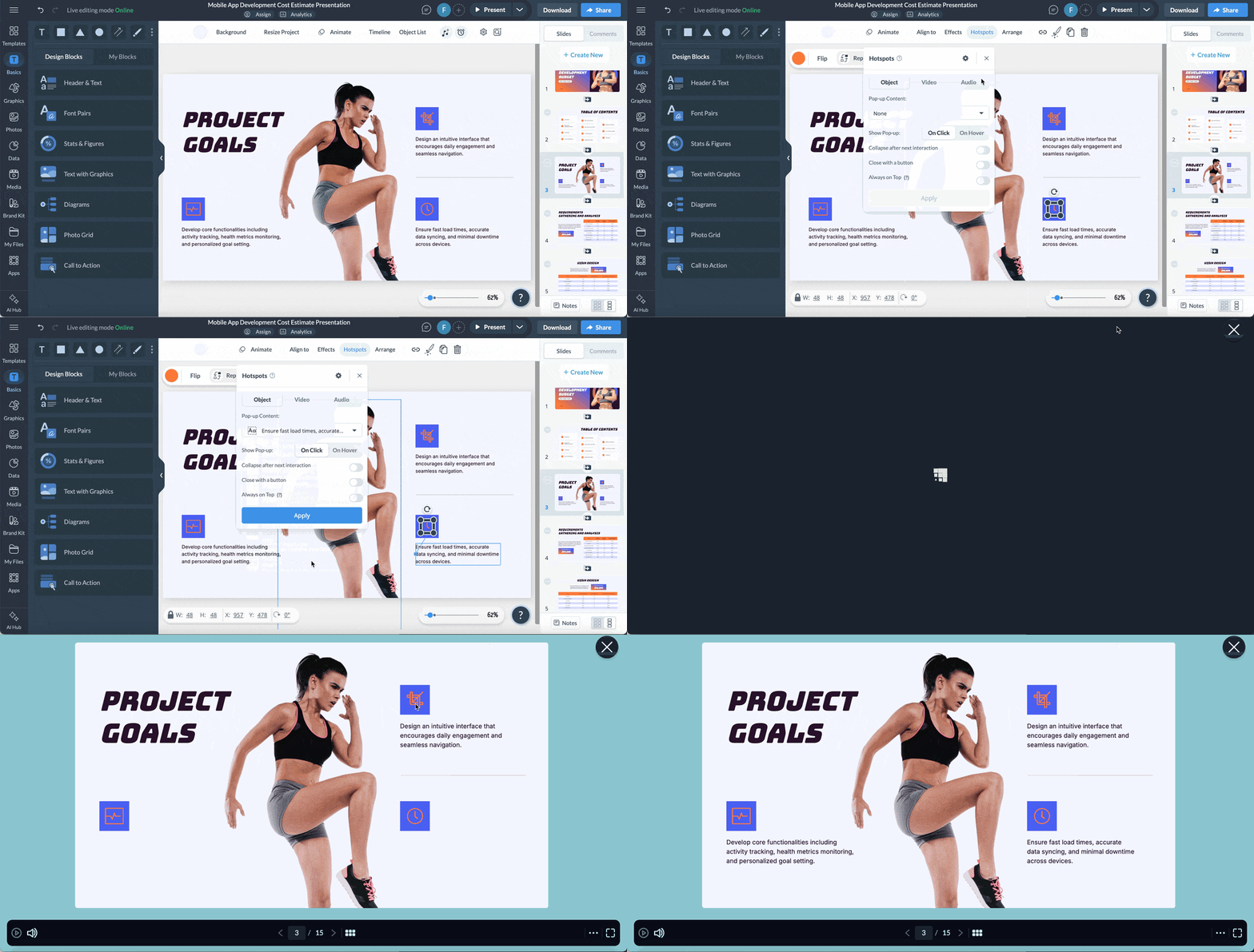
From here, you can choose your pop-up content, type of interactivity (object, video, audio), and customize the style (on click or on hover).
If you want to link an external URL, another slide in the project or another Visme project, just click on the object, hit the “Insert Link” button and follow the process on your screen.
This may sound like a small feature, but it really involves the viewer in the presentation. They can basically hop to the desired slide in a click of a button. Pretty cool.
Visme also offers a vast library of animated illustrations, graphics and presentation cartoons. Here, you’ll find characters, illustrations, gestures, special effects, avatars and more that’ll bring your project to life.
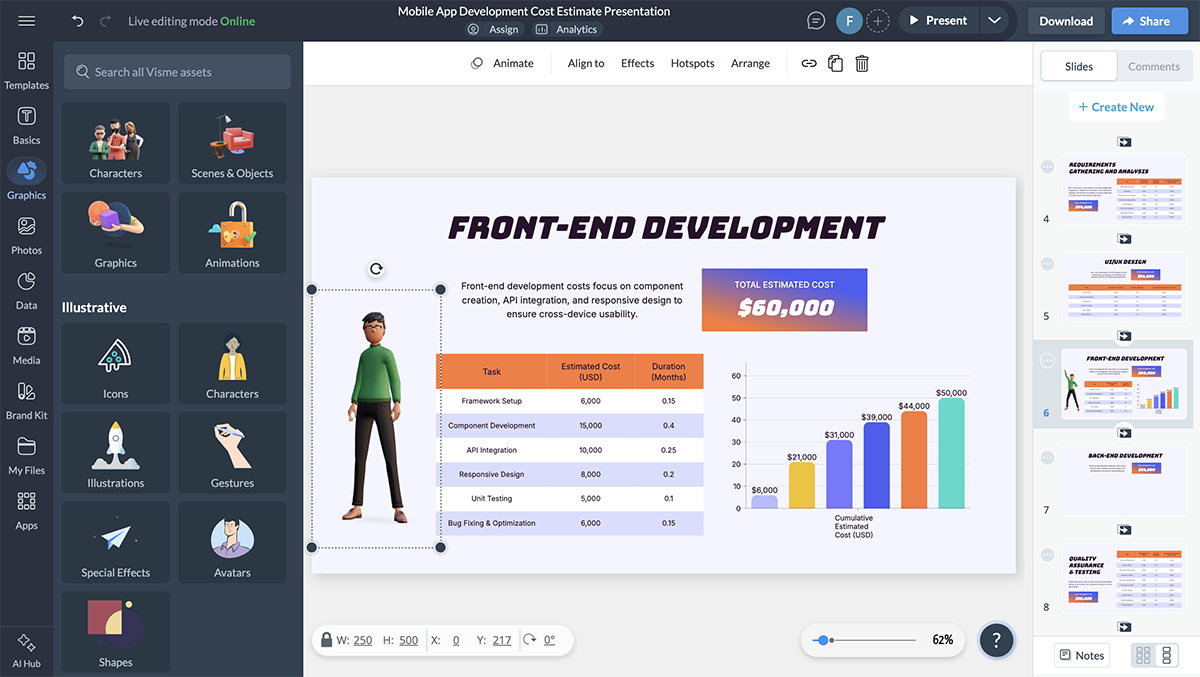
Pretty much everything here is editable, so you can easily customize it to your project requirements.
If you want to know more detailed instructions on how to make presentations with Visme, watch our tutorial video on how to use the various features.
Aside from the animated illustrations and graphics, Visme also offers an easy-to-use character builder you can use to create 3D animated characters. I absolutely love this.
These 3D characters are so lively and unique that they are guaranteed to grab the viewer's attention and boost engagement. In fact, you can also create a custom 3D character to represent your brand. This lets you design hyper-personalized presentations that strengthen your brand identity.
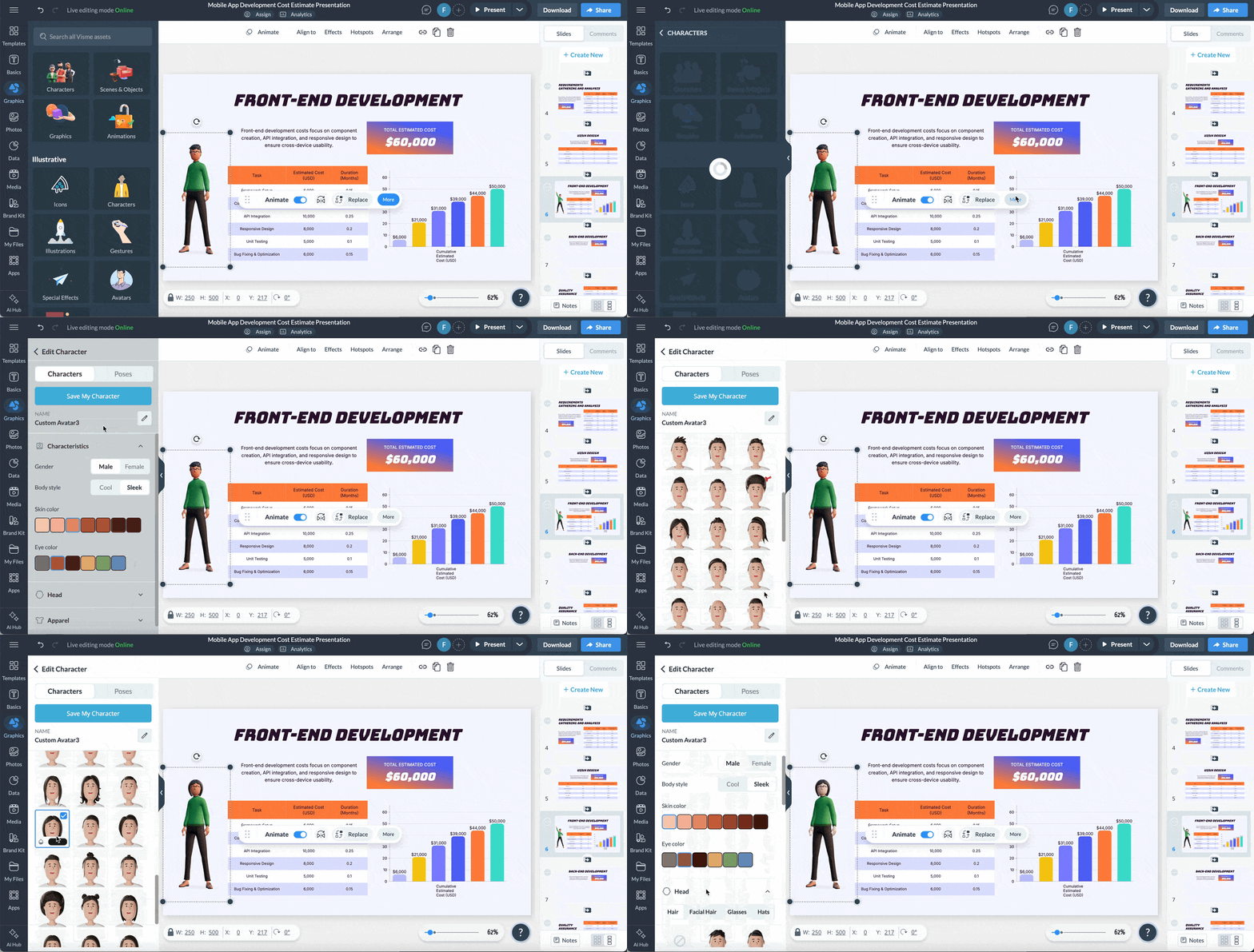
Customize the appearance of your character—from facial hair to skin tone—so it fits your vision. Then, choose an animation style or pose that matches your content (or keep your character static.) You can even save your custom 3D animated characters to use in other projects and presentations.
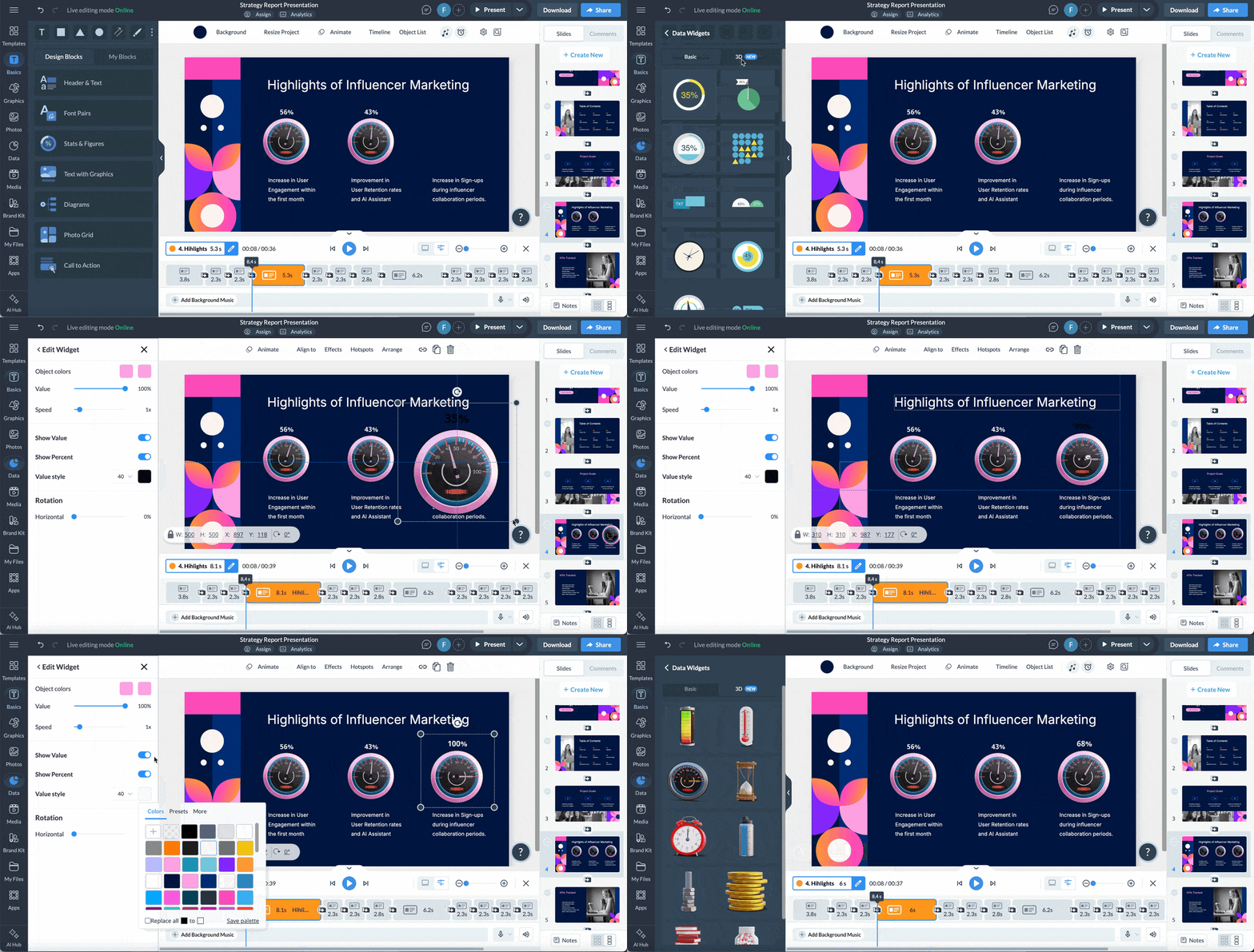
Finally, transform boring statistics and numbers into visually engaging graphics that represent your data in the most engaging way possible.
These 3D widgets are created by Visme’s in-house professionals, so you won’t be able to find these graphics anywhere else.
You can show percentages, amounts and comparisons with 3D thermometers, batteries, clocks, stacks of coins and books and more unique graphics.
The best part? They’re all fully customizable. You can change the colors to fit your brand or presentation design, and even rotate the objects in 3D.
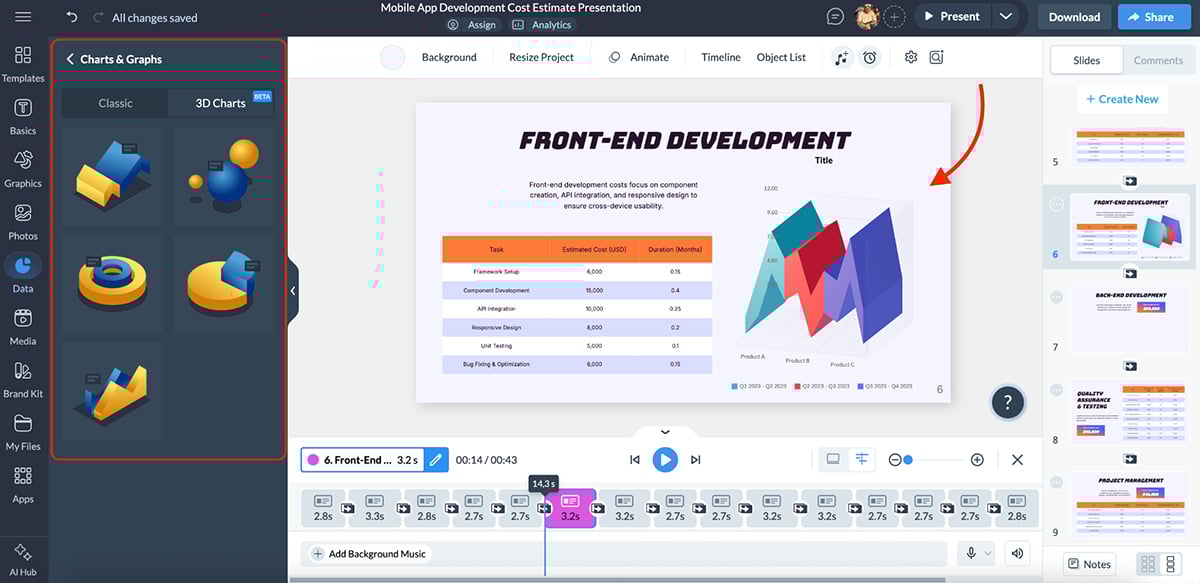
Visme also comes with a 3D chart maker to help make your content even more engaging. The choices are beautiful and can easily be made interactive.
Visme integrates with a ton of third-party tools, including HubSpot, Salesforce, Zapier, Slack, YouTube, Dropbox, Google Analytics and Livestorm. Learn more about Visme's integrations here.
Visme offers a free plan that you can use for as long as you want. It's a great way to test out the tool and get a feel for all that it has to offer.
Note: Visme offers discounted pricing plans for students, educators and nonprofits.
Prezi has been the animated presentation software of choice for educators for a long time. The zoom-in and zoom-out effects are always a delight with students of any age.
Let’s take a look at how animations work on Prezi and their range of customization.
First of all, Prezi uses animation as the way a presentation transitions from slide to slide.
The first slide has all the topics in a layout and the presenter must click on each one to enter a set of slides. When a topic is clicked, the effect is a zoom-in visual that takes the audience on a journey inward. The presenter can then exit that slide and zoom out to the first overview slide again.
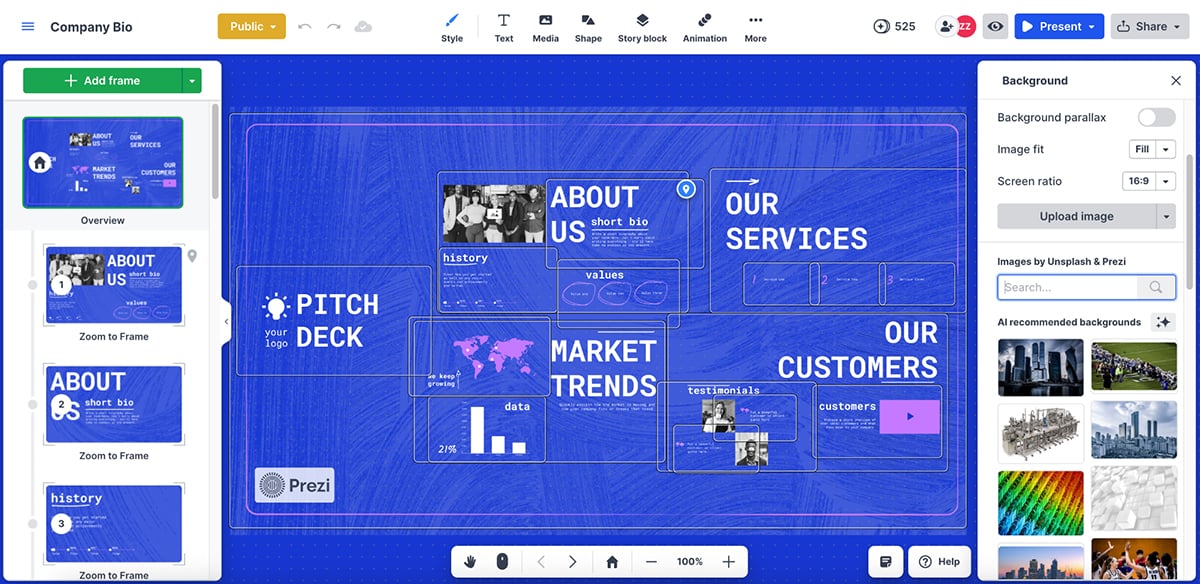
Additionally, all slide elements can be animated. You can even set them as a starting point to go deeper into a topic/theme.
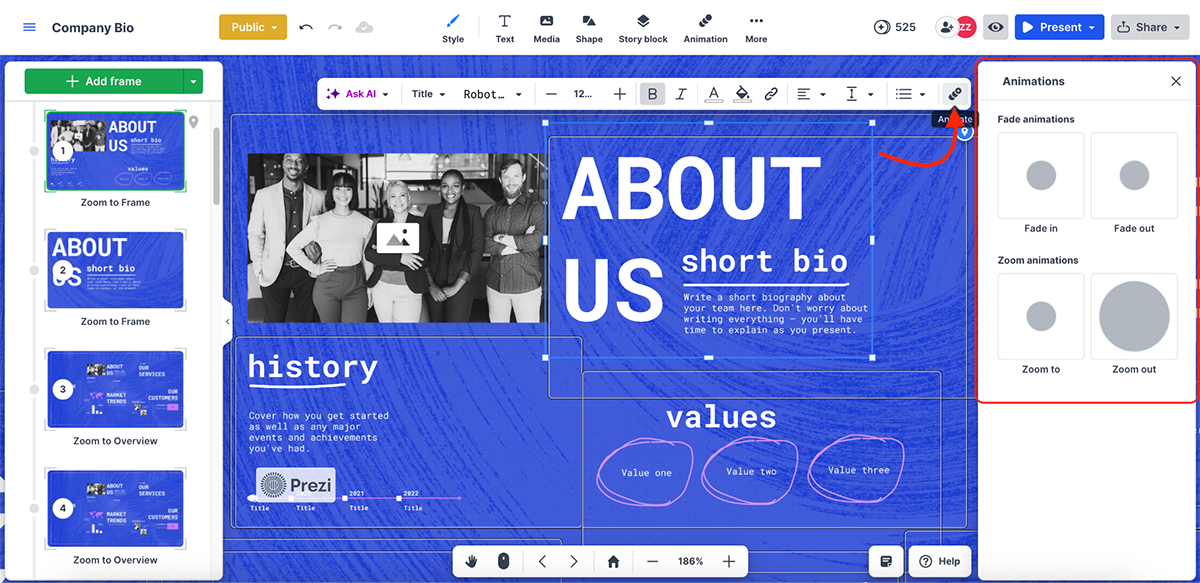
I really like Prezi’s “Story block” feature. It has several pre-built designs that you can add to your Prezi presentation. It essentially cuts your design time in half.
You also get access to a library of images, pre-animated visual assets like GIFs, icons and stickers and data visualization. All of these make Prezi a solid animated presentation software.
You can get started with Prezi for free, but to access more advanced features, you’ll need to subscribe to one of its paid plans:
Vyond is a professional video presentation maker that’s known for its advanced character animations, AI avatars and transition capabilities.
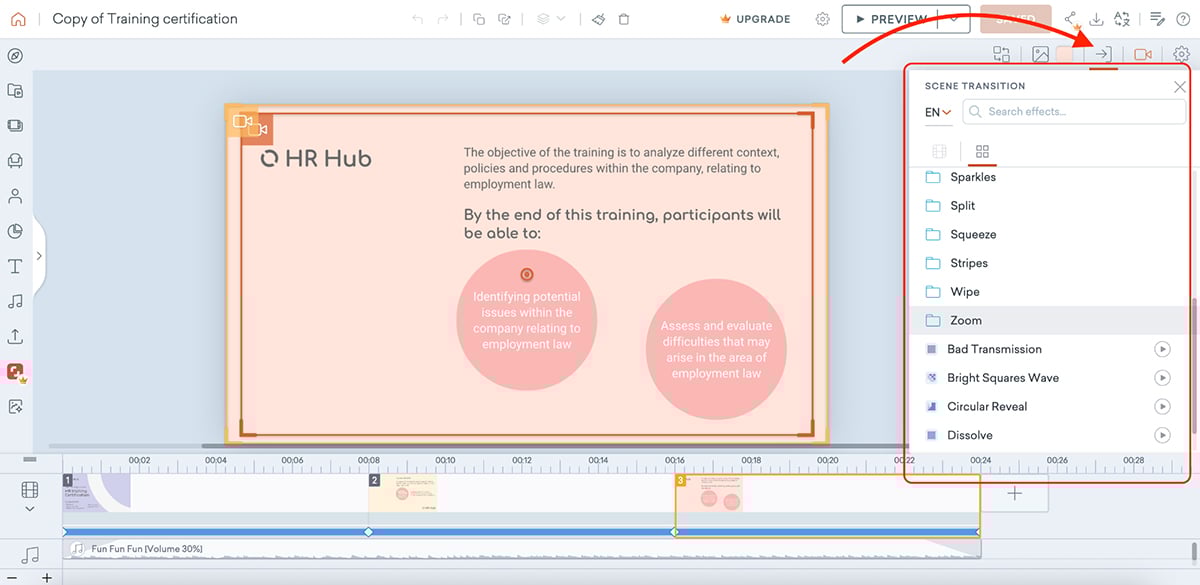
It comes with tons of pre-built templates, scenes, props, characters, charts and text boxes that make it super easy (and fun) to use.

And I love the fact that everything is customizable; character looks, expressions and movements etc., so you can basically use any character for any scene to build any story.
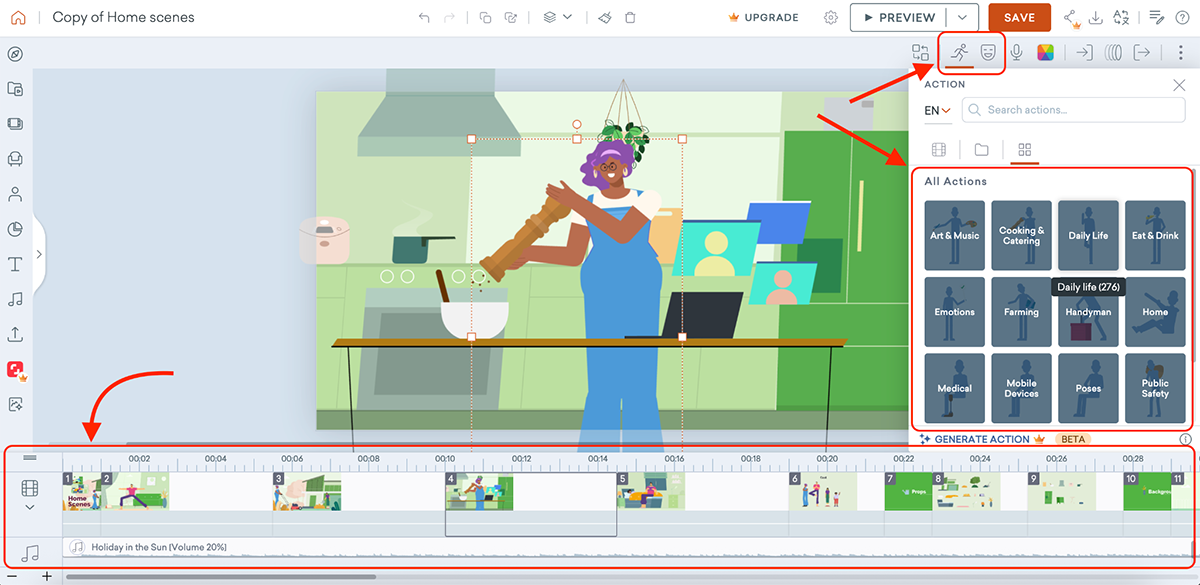
It also comes with a lip-syncing and voiceover feature for character dialogues, an animation timeline for precise scene control and solid collaboration tools for team-based animation projects.
There’s even Vyond Go (gen-AI tool), which automates video creation from text prompts to produce high-quality animations in minutes.
Vyond has a higher pricing range compared to most of the tools on this list, but it also offers other comprehensive tools outside of presentations.
Here are all the plans Vyond provides for (annual billing):
Genially is an interactive content platform that can do so much more than simple animated slides. It comes with a huge library of built-in resources, such as fonts, icons, illustrations, characters, charts, widgets and ready-made compositions.

What I love most is how easy it is to layer in interactivity. You can add buttons, hotspots, hover effects, quizzes, and clickable questions that turn a regular presentation into something your audience can explore.
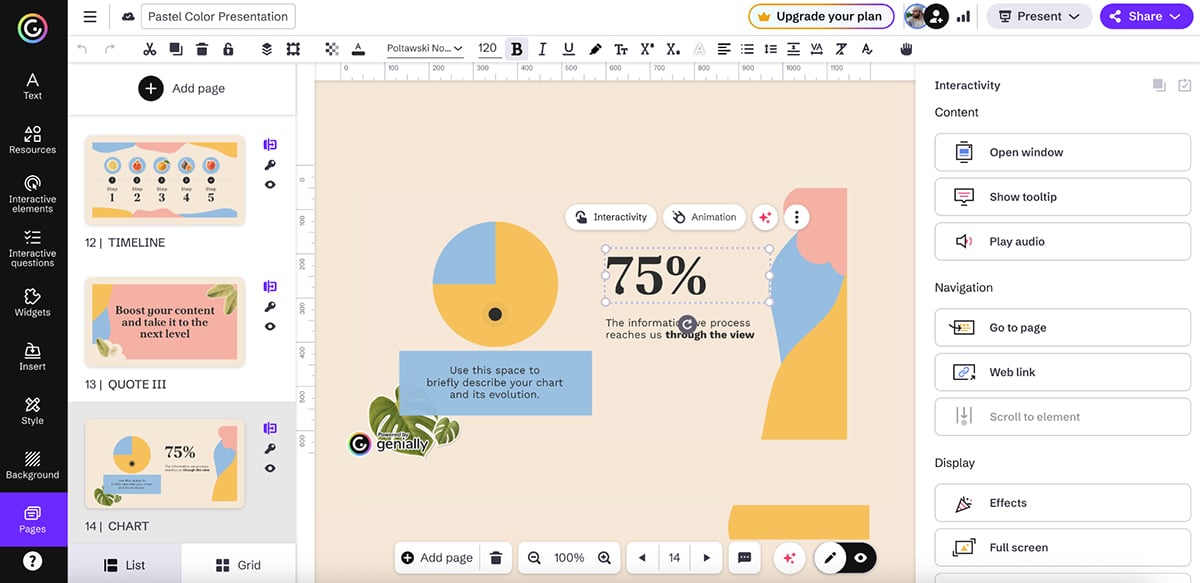
And because every element can be animated with just a click, your slides feel engaging right away.
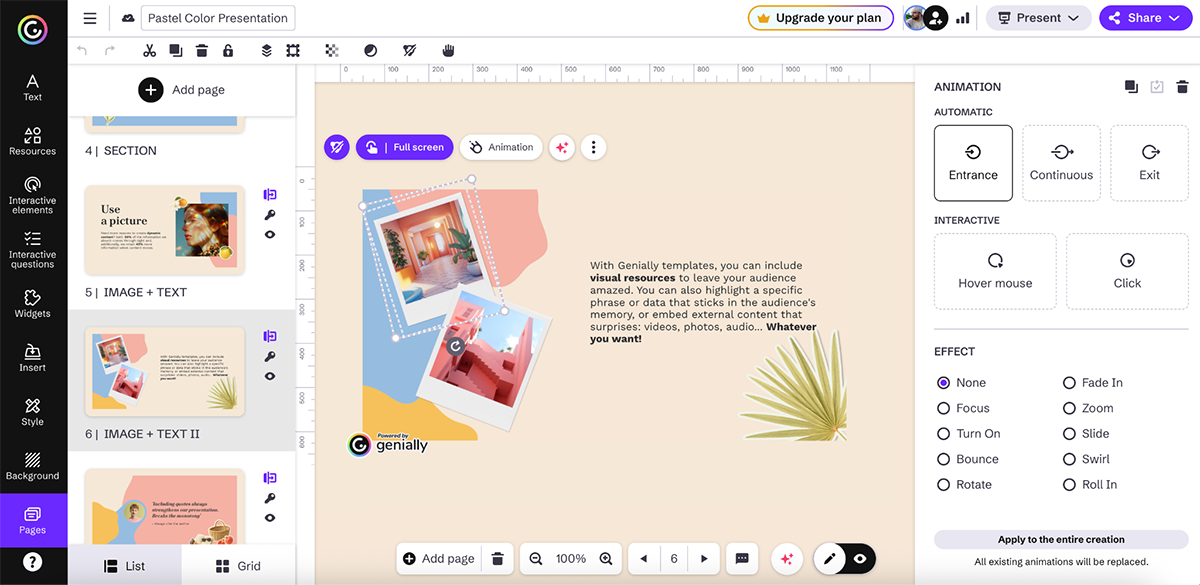
If you want presentations that feel more like interactive experiences than static decks, Genially is a great tool to explore.
Genially's pricing model is designed to accommodate a range of preferences and team plans. The options are as follows:
Canva is one of the simplest tools for creating animated presentations thanks to its huge template library, drag-and-drop elements and built-in AI features.
There are tons of animation styles you can choose from. You can animate full pages at once, or just a single element. It also comes with a Magic Animate feature that instantly applies a motion style across your entire design.
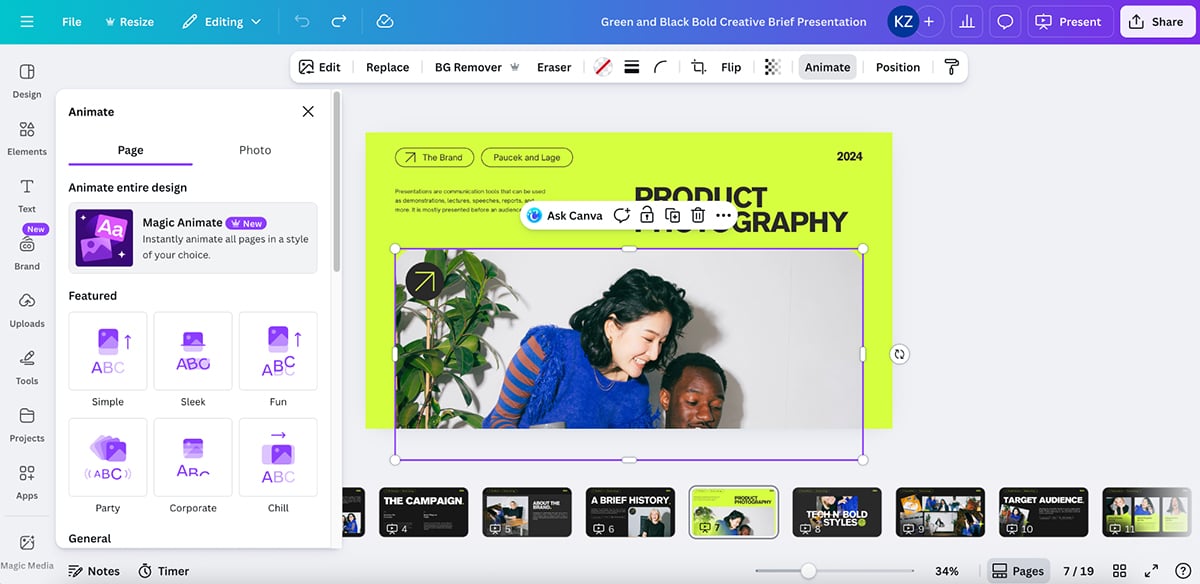
You can also apply animations to individual text boxes and images with a single click.
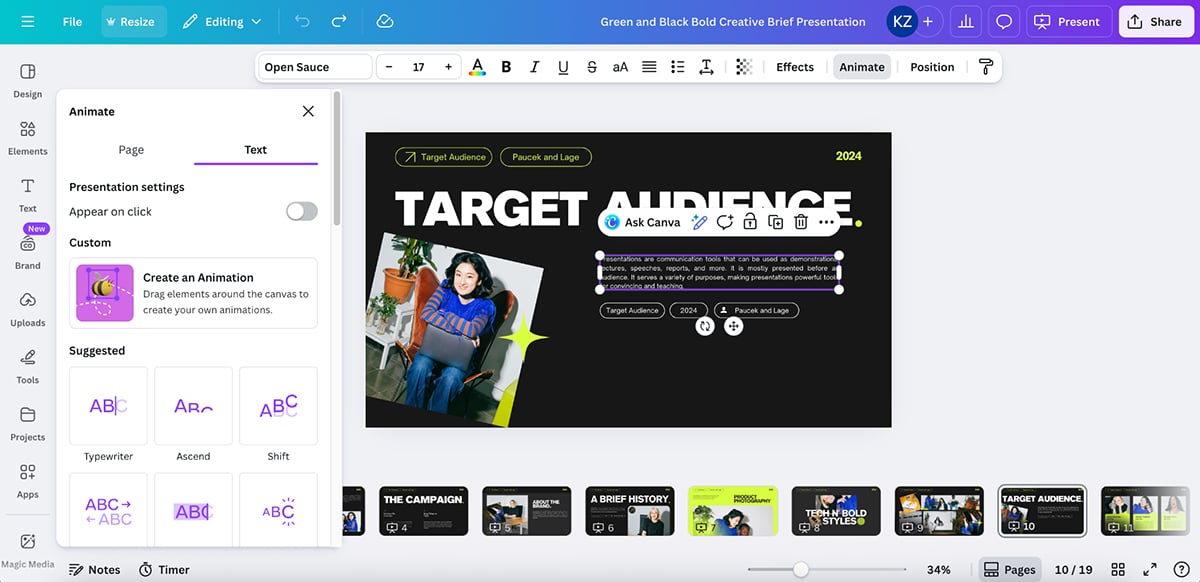
If you want more control, Canva also lets you create custom animations, adjusting direction, timing and stacking multiple effects together. It’s incredibly intuitive.
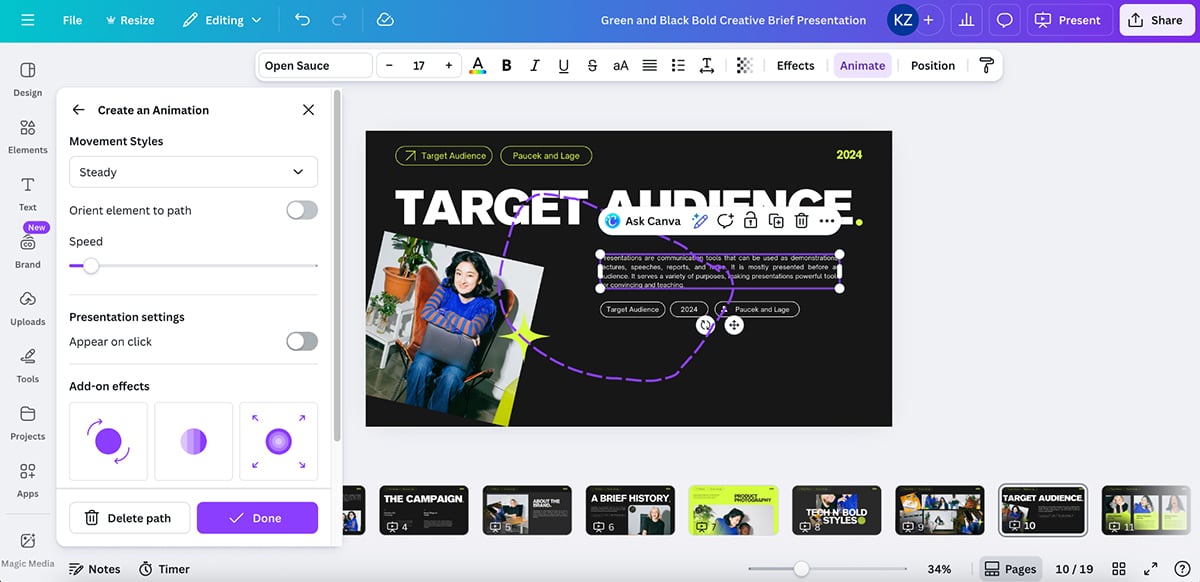
And yes, there are slide transitions too, so you can apply motion between pages, not just on elements.
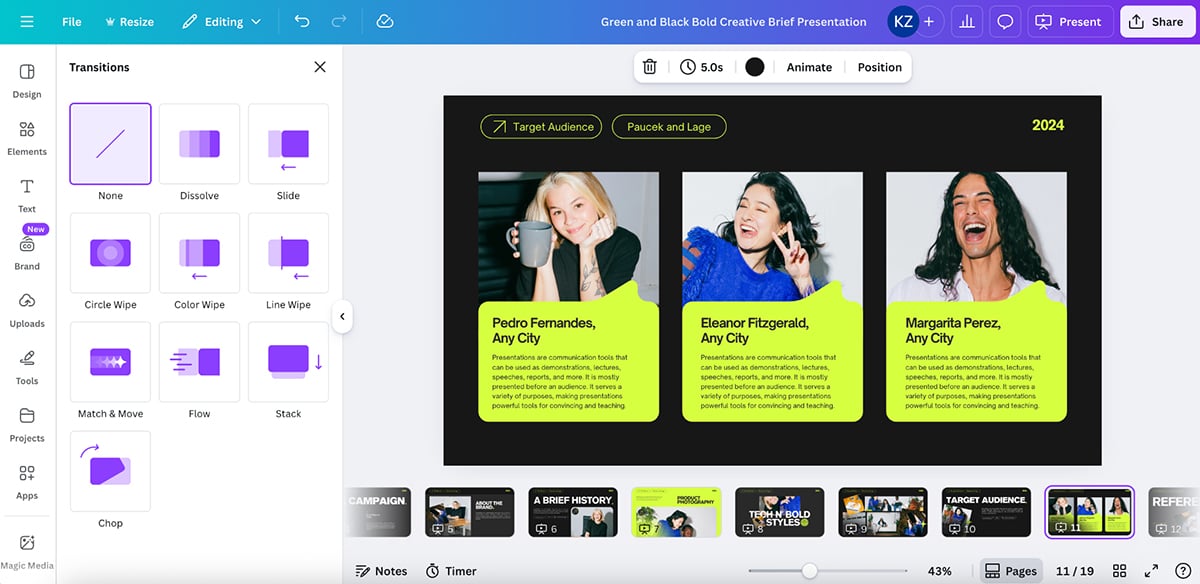
Overall, Canva is great if you want quick, playful animations without a steep learning curve. It doesn’t offer the same depth or advanced effects as Visme, but for simple animated presentations, it’s a reliable pick.
Powtoon is a beginner-friendly animation tool that lets you turn presentations into short, animated video stories. It comes loaded with characters, scenes, props and graphic assets, so you can build something fun and dynamic without needing any animation experience. Whether you’re making a business update, an internal training clip or a classroom explainer, Powtoon makes it easy to bring ideas to life.
What really stands out is Powtoon’s whiteboard animation style. It’s perfect for breaking down complex topics into simple visual moments. This is ideal for training content, tutorials or explaining new processes.
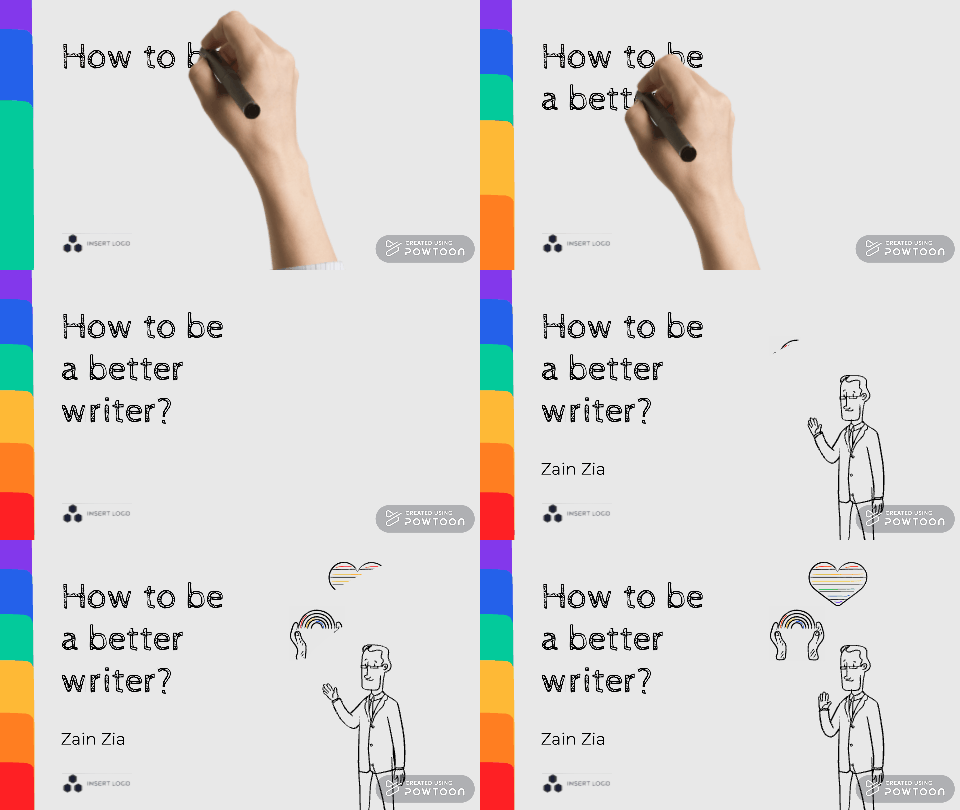
Powtoon also includes helpful extras like AI scriptwriting, text-to-speech, character customization and built-in audio options. You can record your screen or webcam, import PowerPoint files and export your final presentation as a video or GIF. It’s flexible, approachable and designed to help you animate quickly.

However, the only limitation is that many of the best templates sit behind a paid plan, so free users will feel restricted pretty fast.
You can get started with Powtoon for free. The paid plans are as follows:
PowerPoint is still one of the most animation-friendly presentation tools out there. It gives you four main animation categories (basic, subtle, moderate and exciting) that let you control exactly how your photos, text boxes and graphics appear on screen.
You also get exit effects if you want elements to disappear smoothly after they’ve served their purpose.
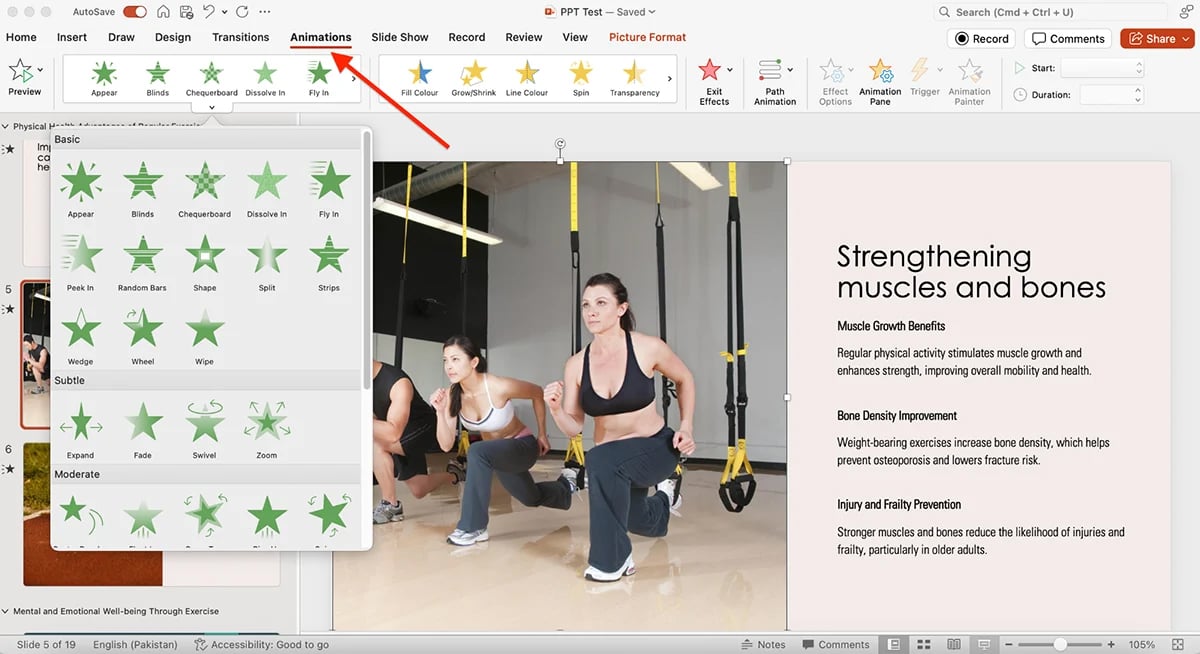
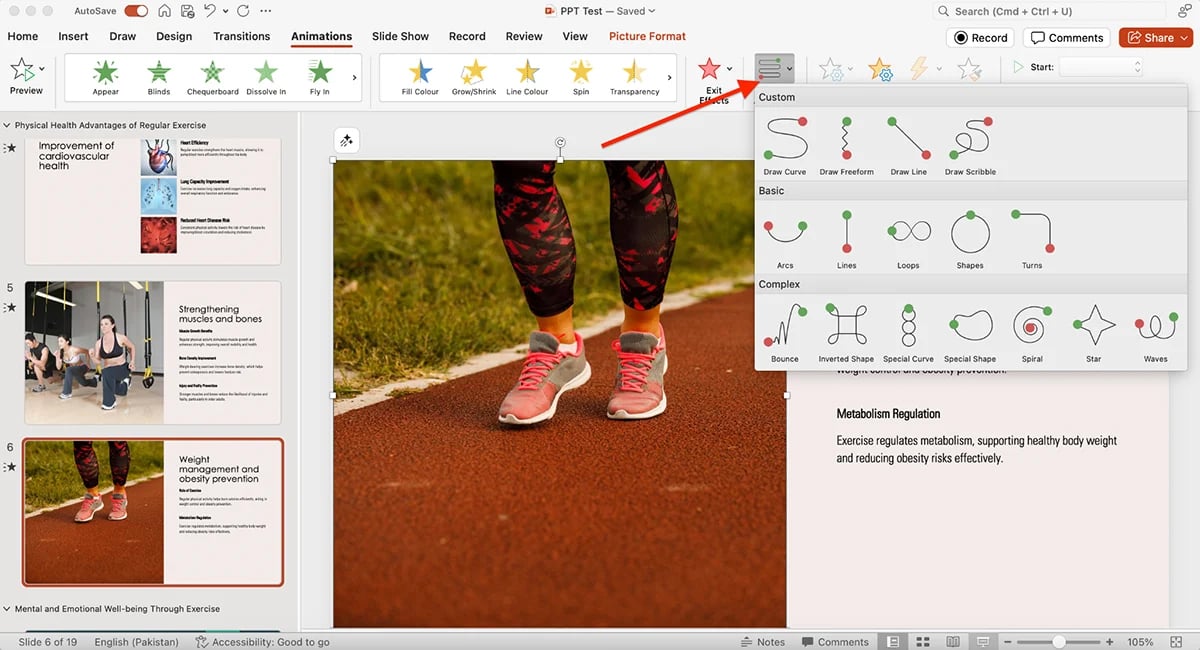
Where PowerPoint really stands out is its advanced controls. You can create custom motion paths, adjust effect options and fine-tune every movement inside the Animation Pane.
Triggers, timers and custom sequences let you build surprisingly complex animated slides if you want that level of precision.
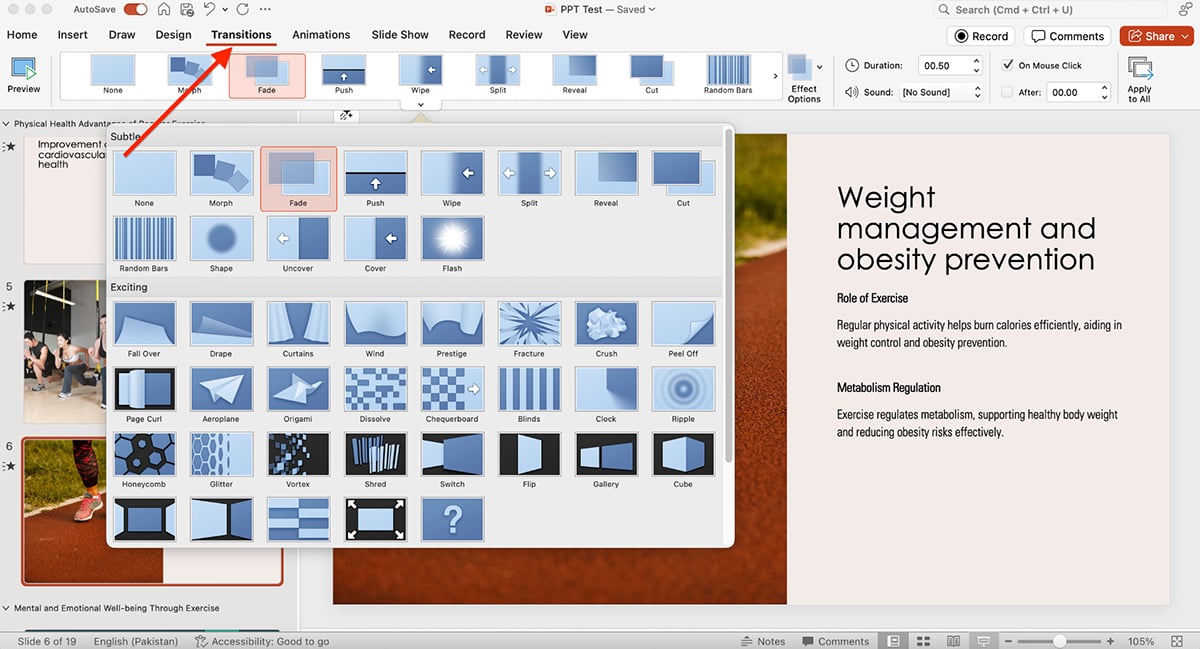
Slide transitions are also a big part of the experience. Beyond classics like Fade and Wipe, PowerPoint includes dozens of transitions, and even the Morph effect, which creates smooth cinematic movements between slides.
Another feature worth mentioning is the Draw tab. Tools like ink-to-text, ink-to-shape, ink-to-math and the lasso selection tool make it easy to sketch, annotate and interact with your slides in real time. It’s a practical option for classrooms, brainstorming sessions or any presentation that benefits from live annotation.
Overall, PowerPoint offers a lot of flexibility for animations and transitions. It may not have the modern, interactive feel of Visme, but if you want deep control and a familiar workflow, it’s still a dependable choice.
RELATED: Visme vs. PowerPoint: A Detailed 2026 Comparison Guide.
You can purchase the standalone version of PowerPoint for $179.99. A subscription-based model gives you access to PowerPoint and several other Microsoft tools. The subscription pricing is as follows:
Beautiful.ai is another presentation software that deserves a place on this list. It comes with smart, automated layouts that adjust as you add or remove content, making the entire design process feel effortless.
I also like that every slide includes subtle built-in animations by default, so your presentation feels dynamic even if you never touch the animation settings.
If you do want to control animations, you can add basic on-click or auto-play motion with just a couple of taps in the animation panel. It’s simple, clean and perfect for beginners who want movement without getting too deep into customization.
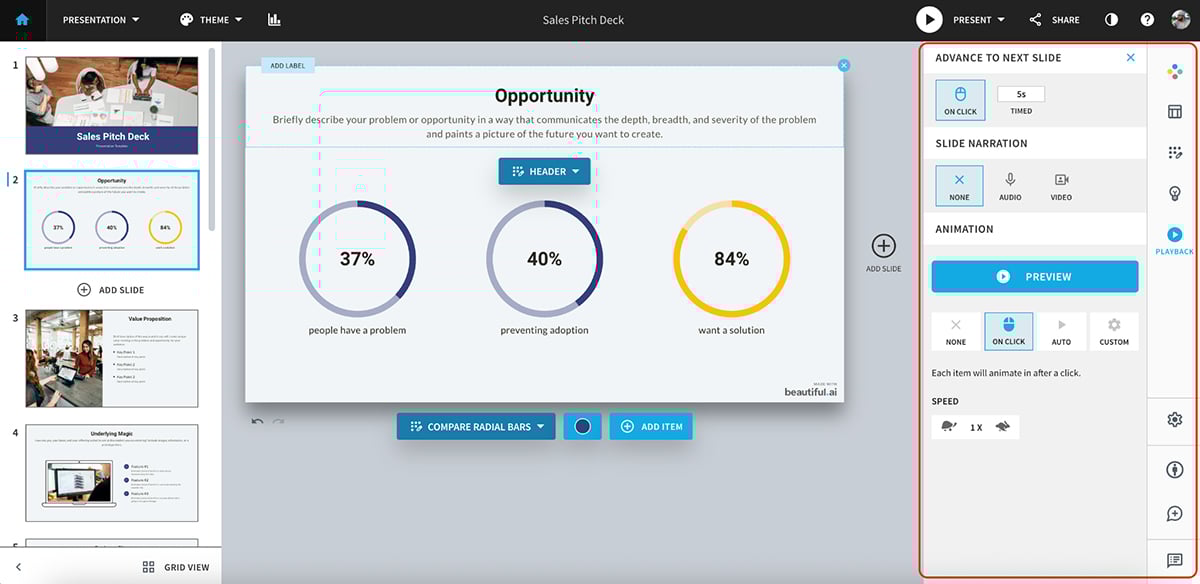
The only caveat here is that you don’t get the same level of granular control that a tool like Visme offers; there’s no advanced timeline or custom motion paths.
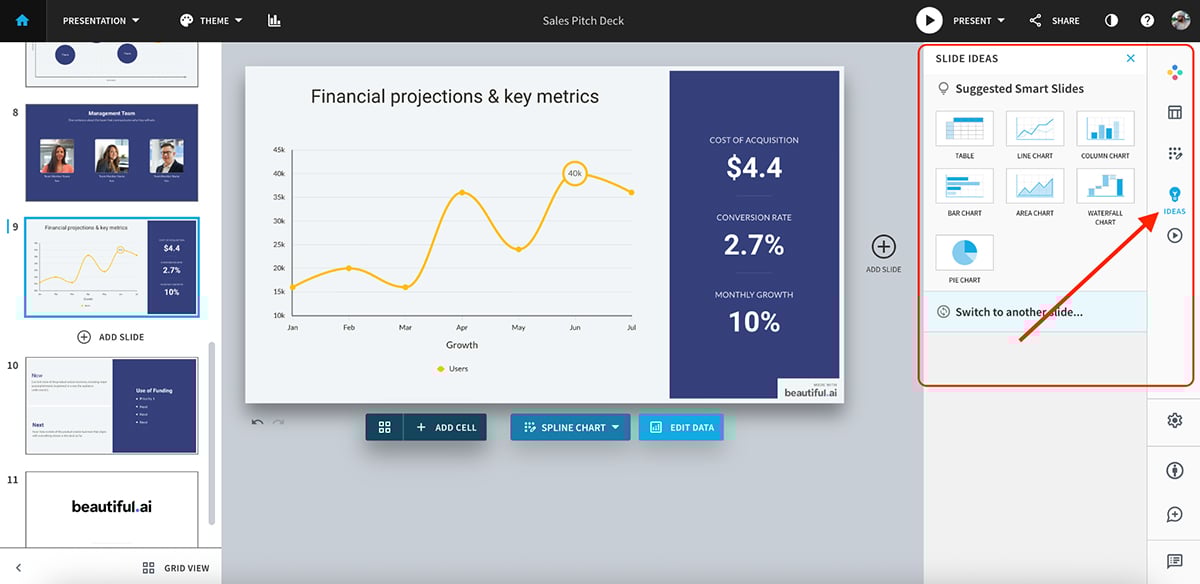
That said, my favorite feature is the “Ideas” tab. Click on any slide, and Beautiful.ai instantly suggests relevant Smart Slide layouts, data visuals or structural improvements based on your content. It’s one of the easiest ways to upgrade a slide without starting from scratch.
Beautiful.ai keeps things simple, but for many users, that simplicity is exactly the point. You get clean designs, smooth animations and an interface that guides you rather than overwhelming you.
You can try out Beautiful.ai with its 14-day free trial. After that, you’ll need to subscribe to one of their paid plans:
Mango Presentation Maker is part of the larger Mango Animate suite, which includes tools for 2D video creation, whiteboard animations, text-to-video and more.
Unlike most tools on this list, Mango Presentation Maker isn’t browser-based; it’s a downloadable desktop app, which makes it useful if you prefer working offline or want something lightweight that runs locally.
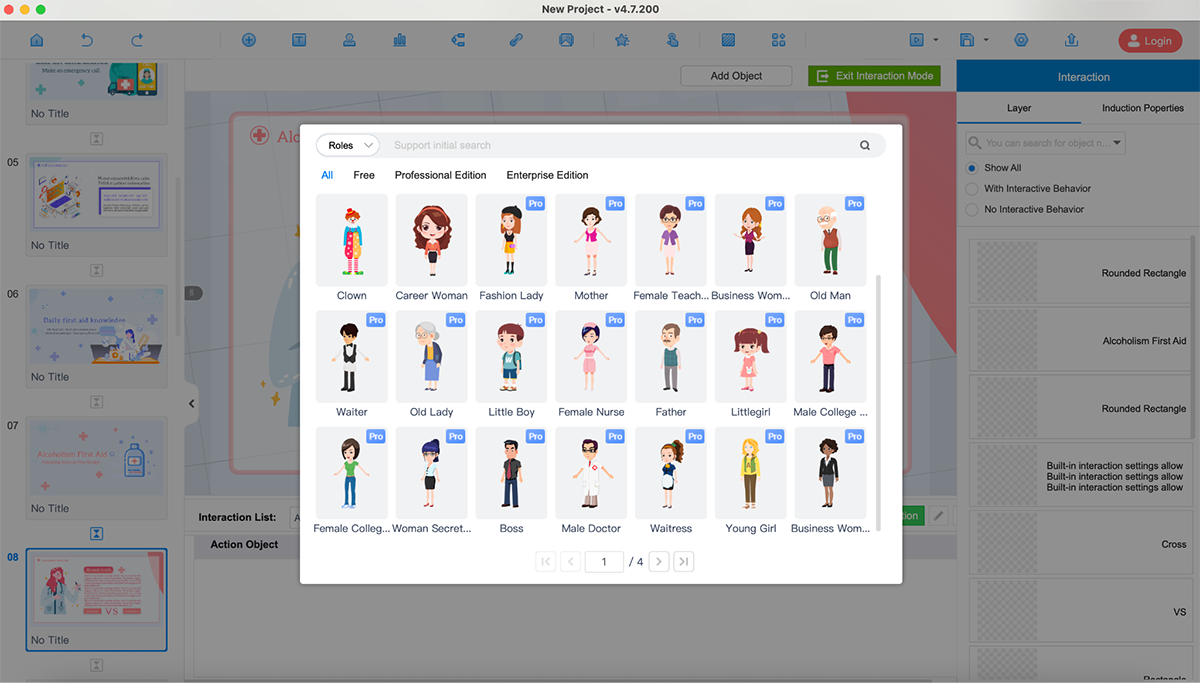
Inside the Presentation Maker, you’ll find a collection of premade templates to help you get started. You can build mind maps, charts, role diagrams and even add premade characters to your slides, which makes the tool feel more versatile than a basic animation editor.
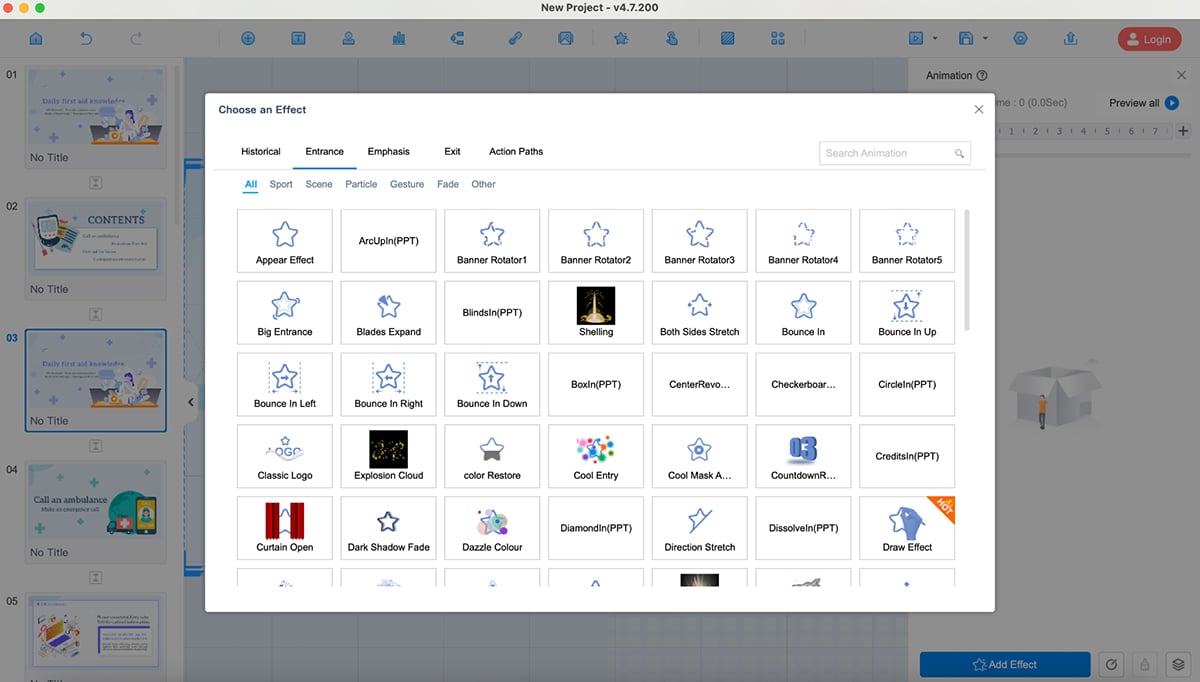
Mango also gives you a large library of animation effects. There are dozens of entrance, emphasis, exit and action-path animations you can apply to text, images and objects.
You can adjust timing, layer multiple animations and preview everything in real time.
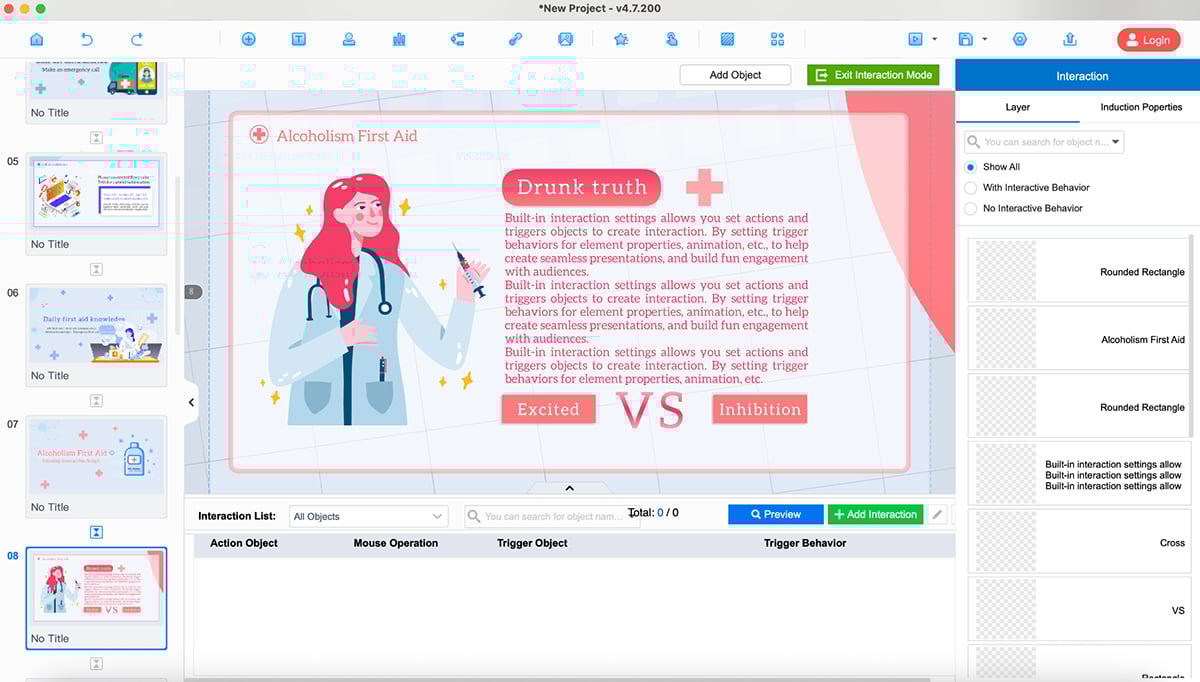
There’s even an Interaction Mode, where you can set triggers and clickable behaviors to make certain objects respond to user actions.
While it’s more limited than Visme or other cloud-based presentation platforms, Mango Presentation Maker offers enough animations, structure tools and interactive options to help you create clean animated presentations.
You can use Mango PM for free. To unlock premium features, you’ll need to pay a one-time fee of $49.
Linearity Move is built for anyone who wants motion design to be the star of their presentation.
Instead of simple slide animations, you get true motion-graphics-style control: smooth transitions, object movements, layered scenes and cinematic effects that feel closer to a motion design tool than a traditional presentation app.
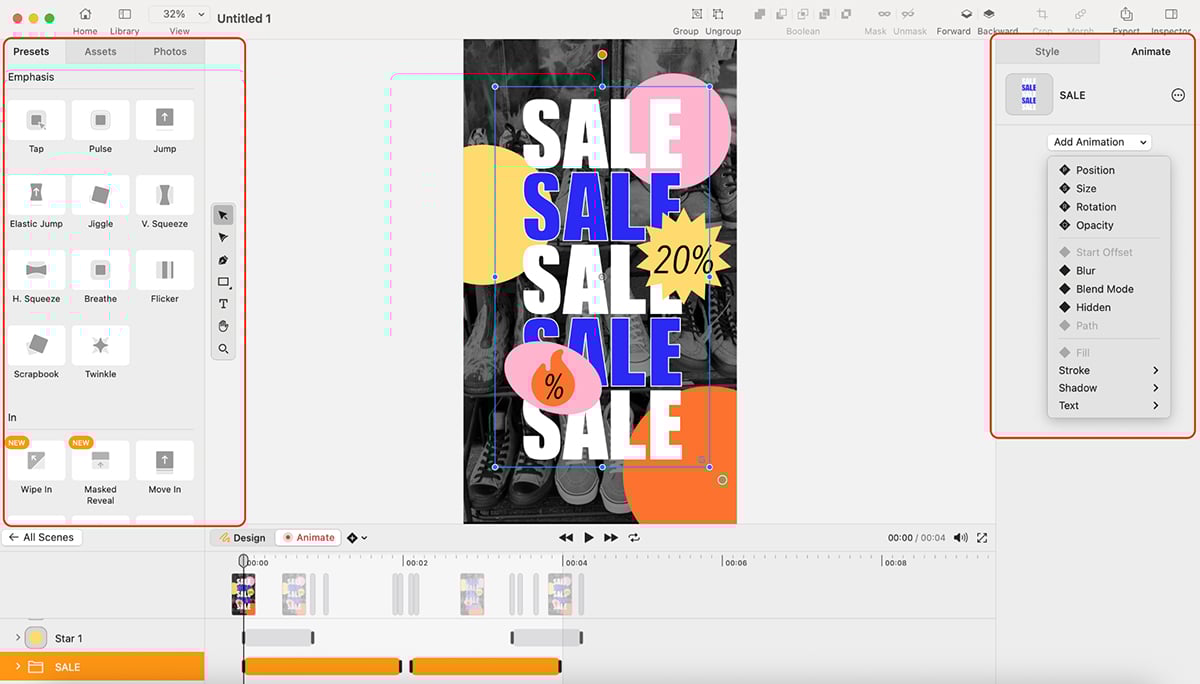
Linearity also offers Curve, its companion vector-design tool. Curve is where you create your illustrations, icons, characters or full layouts, and then you bring them into Move to animate. This workflow is incredibly seamless, and the Auto Animate feature makes the process even easier by generating polished transitions between your artboards with just a click.
Check out this YouTube video where the creator draws and animates a character using Linearity Move:
Plus, if your assets already live in Figma, Illustrator or other design tools, you can import them directly into Move as well. The app will keep everything crisp and vector-sharp, so nothing loses quality when you animate.
Linearity Move also includes a growing library of templates, so you don’t have to start every animation from a blank canvas. You can pick a motion style, drop in your own visuals and customize the timing or easing to fit your story.
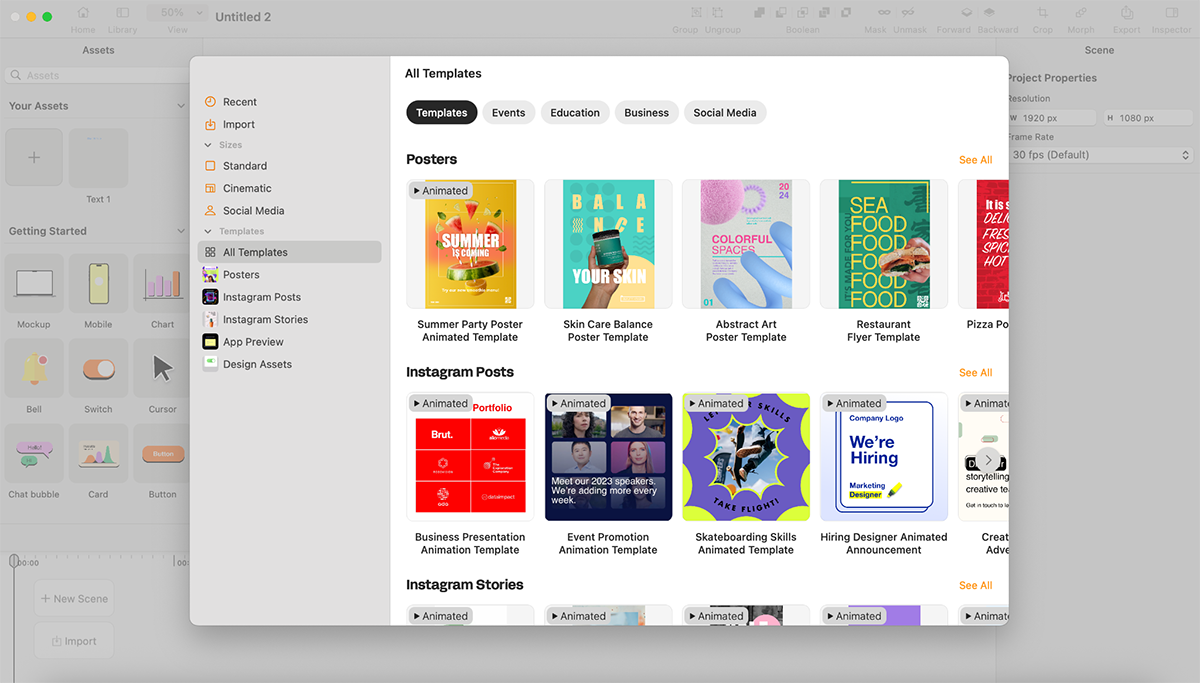
While Linearity Move is powerful, it’s better suited for creatives and advanced users. If you want premade 3D characters, AI features, advanced animations and a much gentler learning curve, Visme is the stronger choice.
Presentations often use various animation styles, like 2D, 3D, motion graphics, whiteboard and kinetic typography. 2D animations are flat and simple, while 3D adds depth and realism. Motion graphics combine text, shapes and images, and whiteboard animations mimic hand-drawn illustrations. Kinetic typography uses moving text to convey messages.
Some types of animated presentations include 2D animation videos, 3D animation videos, whiteboard animation videos, motion graphic videos, animated typography videos and stop motion videos.
The best animation style for presentations depends on the content and target audience. However, simple, clean animations that enhance the message without overwhelming the viewer are generally preferred in most situations.
It’s important to choose animations that complement your presentation’s tone and purpose instead of distracting from the core content.
Yes, PowerPoint offers built-in animation tools, effects and transitions that allow users to animate the text, images, shapes, slides and other elements in their presentations.
You can also edit your PowerPoint presentations using a third-party tool like Visme to add even better, more advanced and sleek animations, interactivity and design elements.
PowerPoint offers four main types of animations: entrance, emphasis, exit and motion paths.
There are several presentation software that are great alternatives to PowerPoint, but one of the best tools for creating engaging presentations is Visme. The platform offers powerful and easy-to-use tools for creating, editing, animating, presenting, sharing and downloading all kinds of slide decks.
Visme’s presentation software gives you access to thousands of ready-made presentation templates and lets you customize every aspect of the slides, use AI and branding tools, add animated elements and interactivity, embed multimedia and much more.
Yes, Canva offers a range of animations, transitions and effects to enhance your presentations. Users can apply an animation style to the entire presentation or animate specific elements within slides.
You can also adjust duration and delay settings, and even create your own animation style. Canva also offers several transitions to create a smooth flow between your slides.
If you’re looking for the perfect software to help you create your own animated presentation, you don’t really need to look any further than Visme.
You can easily animate elements in a clean and seamless way without it getting overwhelming. Slide transition effects are also super effective with plenty of options for customization.
To present or share your animated presentation, use the online link and view from any device. If you’d like to present it without an internet connection, download it as an HTML5 (offline web) file or as a high-quality MP4 video.
You can also collaborate with your marketing team to put together an animated presentation in Visme. Or, take advantage of the brand kit and save your animated presentation as a template to use for your future slideshows.
Sign up for a free Visme account today and create your perfect animated presentation.

Design visual brand experiences for your business whether you are a seasoned designer or a total novice.
Try Visme for free