Visme MCP server
Create an editable Visme presentation from Claude. Connect once, then ask Claude for a presentation: Claude writes the slides, the connector imports them into your Visme workspace, and you get a link that opens the project in the Visme editor.
- Server URL
https://mcp.visme.co/mcp- Auth
- OAuth 2.0 with PKCE (S256). The client discovers the Visme authorization server from
/.well-known/oauth-protected-resource/mcpand registers with a Client ID Metadata Document. Dynamic client registration is not supported. You sign in to Visme and pick one workspace. Required scope:project:write. Tokens are issued for this server only. - Transport
- Streamable HTTP, JSON responses, stateless sessions. Not the legacy SSE transport.
- Plans
- All Visme plans, including the free Basic plan. On Basic, only the first 25 slides of a presentation are kept.
- Clients
- Claude (web, Desktop, Cowork, Claude Code) at the URL above. ChatGPT coming soon.
- Disconnect
- In Claude, open Customize → Connectors and click Remove (or the ⋯ menu) next to Visme.
What it does #
You ask Claude for a presentation. Claude writes it as an HTML document, following the layout rules the connector gives it (1280×720 slides, real text, flat colours). The connector converts that HTML into a Visme project with separately editable text and image objects, saves it in the workspace you picked when connecting, and hands back a link that opens it in the editor.
- Three tools.
create_presentationstarts the import and answers at once. Claude then checksget_task_statusuntil the project is ready and gives you the editor link.cancel_taskstops an import that is still running. - The project is a normal Visme project afterwards. Edit it, share it, apply your brand kit, export it.
- Nothing is generated by Visme on this path. What you import is what Claude made.
Setup in Claude #
From the connectors directory
Available once Visme is listed in Claude's directory. Until then, use the custom connector steps below.
- In Claude, open Customize → Connectors, find Visme, and click Connect.
- Sign in to Visme if you aren't signed in already.
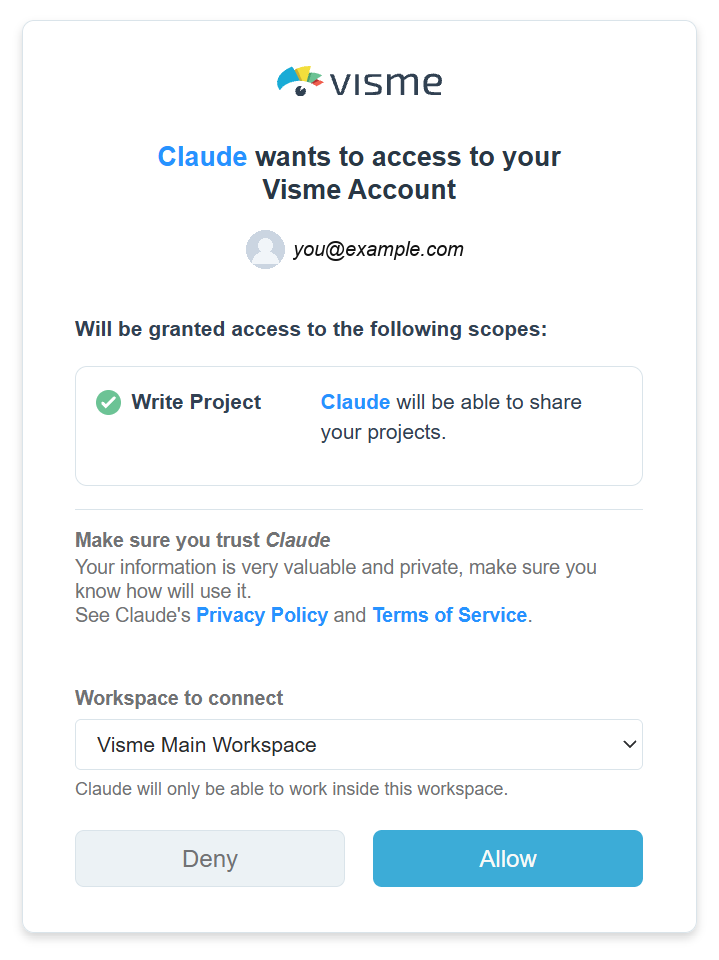
- The Visme consent screen says
Claude wants to access to your Visme Account
and lists one permission, Write Project, which is theproject:writescope. Under Workspace to connect, pick the workspace Claude should create projects in, then click Allow.
As a custom connector
Use this until Visme is listed in the directory. On Claude's Free plan you can add one custom connector.
- In Claude, open Customize → Connectors, click + Add, then Add custom connector.
- Name it Visme and paste the server URL:
Then click Continue.
https://mcp.visme.co/mcp
- Keep the authentication settings Claude detects. Under OAuth client, keep Use Claude's published identity (Recommended). Don't pick Register automatically: Visme doesn't support it. Click Add.
- Click Connect, sign in to Visme, pick a workspace on the consent screen, and click Allow.
Claude finds the Visme sign-in by itself: an unauthenticated request gets 401 with WWW-Authenticate: Bearer pointing at https://mcp.visme.co/.well-known/oauth-protected-resource/mcp. Tools are not listed before you sign in. A token that lacks project:write gets 403 with insufficient_scope.
In Claude Code
- Add the server:
claude mcp add \
  --transport http \
  visme https://mcp.visme.co/mcp
- In Claude Code, run
/mcp, choose visme, and sign in to Visme in the browser window that opens. Pick a workspace and click Allow.
Admin setup for Claude Team and Enterprise
On Claude Team and Enterprise plans, an Owner adds the connector for the organization once (on Enterprise, also anyone whose custom role includes Manage access to Libraries).
- The Owner opens Organization settings → Connectors, clicks Add, hovers over Custom, and selects Web.
- Name it Visme, enter
https://mcp.visme.co/mcp, and click Continue. Under OAuth client, keep Use Claude's published identity (Recommended). Click Add. - Members then open Customize → Connectors, find Visme, and click Connect. Each member signs in with their own Visme account; there is no shared workspace token.
Nothing needs to be enabled on the Visme side. Any Visme account can be connected once the Owner has added the connector in Claude.
ChatGPT and other clients
ChatGPT is coming soon; setup steps will be added here when it is available. Other MCP clients can use the same URL if they support Streamable HTTP and OAuth 2.0 with PKCE, and register with a Client ID Metadata Document. Dynamic client registration is not supported.
Example prompts #
Ask Claude in plain language once you're connected. Claude can write a new deck for Visme, or import one it made earlier in the conversation.
- Make a 5-slide Visme presentation about our Q3 results.
- Import this deck into Visme.
- Send the presentation above to Visme and give me the editor link.
- Turn the slides you just made into a Visme project called "Q3 board update".
Projects always go to the workspace you picked when connecting. To use another workspace, disconnect and connect again.
Tools #
Three tools. create_presentation and cancel_task write to your workspace; get_task_status only reads.
create_presentation
WriteParameters
| Parameter | Required | Limit |
|---|---|---|
title | Yes | Project name, 1–200 characters. |
html | Yes | The presentation as one standalone HTML document. At most 2,000,000 bytes. |
idempotency_key | Yes | Unique per request, at most 128 characters. Sending the same key again returns the same task instead of creating a second project. |
Returns right away:
{
  "task_id": "…",
  "status": "pending",
  "stage": "importing",
  "message": "Still working. Check again with get_task_status in a few seconds."
}
The import continues in the background. The project is created in the workspace picked when connecting.
get_task_status
ReadParameters
| Parameter | Required | Limit |
|---|---|---|
task_id | Yes | The id returned when the presentation was created. |
Returns when the project is ready:
{
  "task_id": "…",
  "status": "done",
  "stage": "done",
  "editor_url": "https://dashboard.visme.co/v2/edit/{project_id}",
  "message": "Your presentation is ready."
}
While the import runs, status is pending or running. If it fails, status is failed, with an error_class and the message Creating the presentation failed. Try again.
cancel_task
WriteParameters
| Parameter | Required | Limit |
|---|---|---|
task_id | Yes | The id of a task that is still running. |
Returns the task with "status": "cancelled" and the message Creation was cancelled.
A task that already finished or failed is returned unchanged.
What converts and what doesn't #
The importer turns the HTML into native Visme objects wherever it can, so you can edit the result rather than just look at it. Here is what to expect.
| In the HTML | In Visme |
|---|---|
Each <section class="slide"> (1280×720) | A separate slide, in the same order. |
| Headings and text blocks | Separately selectable, editable text objects. Size, weight and colour are kept; a font Visme doesn't have is replaced by the closest Visme font. |
| Images (absolute https URL or data URI) | Individual image objects you can move, resize and replace. |
| Solid colours and backgrounds | Kept as solid colours. |
| Gradients, shadows, transparency, blur, filters | Flattened into pictures. |
| Tables and charts | Not converted to native Visme tables or charts. |
| Embedded video, animations, JavaScript | Not imported. Each slide comes in as it looks when rendered. |
| Images and fonts loaded from a URL | Fetched when the slides are rendered. Use absolute https URLs; Google Fonts via <link> work. |
| Content outside the 1280×720 slide | Cut off. |
Limits #
- HTML document at most 2,000,000 bytes (about 2 MB).
- At most 2 presentations being created at once per Visme user. A third request gets
too_many_in_flightuntil one finishes or is cancelled. - No per-import slide cap from the connector. On the Basic plan, only the first 25 slides are kept.
- Each request creates a new project; there is no update-in-place. Only a retry with the same
idempotency_keyreturns the existing task instead of a second project. - Task status can be checked for 7 days.
- AI credits are not charged for imports.
Troubleshooting #
Headings in code are the exact text the tool returns. Tool errors come back as code: message. A failed import is not a tool error: get_task_status returns status: failed with an error_class.
Authentication
unauthenticated: this tool needs a signed-in Visme user
CauseThe call has no usable Visme token.
FixConnect the connector again and finish the Visme sign-in.
403 insufficient_scope
CauseThe token does not include project:write.
FixReconnect and click Allow on the consent screen.
503 auth_service_unavailable
CauseThe Visme sign-in server did not answer. This is not an expired user token.
FixTry again shortly.
Visme isn't showing up in my tools
CauseThe connector is not connected, or tools/list was attempted before sign-in. The server lists tools only after you have signed in.
FixAdd https://mcp.visme.co/mcp and finish the Visme sign-in. Then ask Claude for a presentation.
Creating a presentation
invalid_title: Give the presentation a title.
CauseThe title was empty.
FixAsk again with a project name.
invalid_html: html must contain the presentation markup.
CauseThe HTML was empty.
FixAsk Claude to write the deck as HTML, then import again.
html_too_large: html must be at most 2000000 bytes.
CauseUsually images embedded as data URIs.
FixAsk Claude to link images by https URL instead of embedding them, or to use fewer images, then import again.
too_many_in_flight: You already have 2 presentations being created. Wait for one to finish, or cancel one: its slot frees once it has stopped.
CauseTwo of your imports are still running.
FixWait for one to finish, or cancel one, then try again.
task_not_found: No such task.
CauseThe task id is wrong, belongs to another user, or is older than 7 days.
FixCreate the presentation again.
tools_disabled: Creating presentations from here is temporarily switched off.
CauseThe service is switched off on Visme's side.
FixNothing to change on your end. Try later.
task_store_unavailable: The task store is not reachable right now. Try again shortly.
CauseA temporary problem on Visme's side.
FixTry again shortly.
Failed imports
Here get_task_status returns "status": "failed" and an error_class.
error_class: render_failed or error_class: render_timeout
CauseThe HTML could not be rendered into slides.
FixAsk Claude to regenerate the deck with fewer or smaller images, then import again.
Failed with any other error_class
CauseVisme could not finish the import or save the project.
FixTry once more. If it keeps failing, contact support with the time of the attempt and the task_id.
The deck came in but everything is one flat image
CauseThe HTML drew the slides as images or canvases rather than text and image elements, or used gradients, shadows or transparency, which flatten into pictures.
FixAsk Claude to regenerate the deck with real text elements and flat colours, then import again.
Data and privacy #
The connector receives your signed-in Visme user id, the workspace you chose, and the title and HTML you send. The HTML is used only to create your project. The connector deletes it once the import service has accepted it, and the import service deletes its copy when the import starts, after one hour at the latest. The task record (title, status, project id) is kept for 7 days so Claude can check the result. Your Visme sign-in token is never passed to the import service.
See also the Visme privacy policy.